Thank you for choosing Lucid Wake. Designed for Wear OS, this app utilizes advanced REM detection technology to assist in your lucid dreaming practice.
Core Workflow
- Pre-sleep Preparation: Open the watch app and verify your settings. Pro users: Use the Test Alert feature to ensure phone-watch connectivity and check volume/vibration levels. Press START to begin monitoring.
- Connectivity:
- Free: The watch operates independently; no phone connection is required.
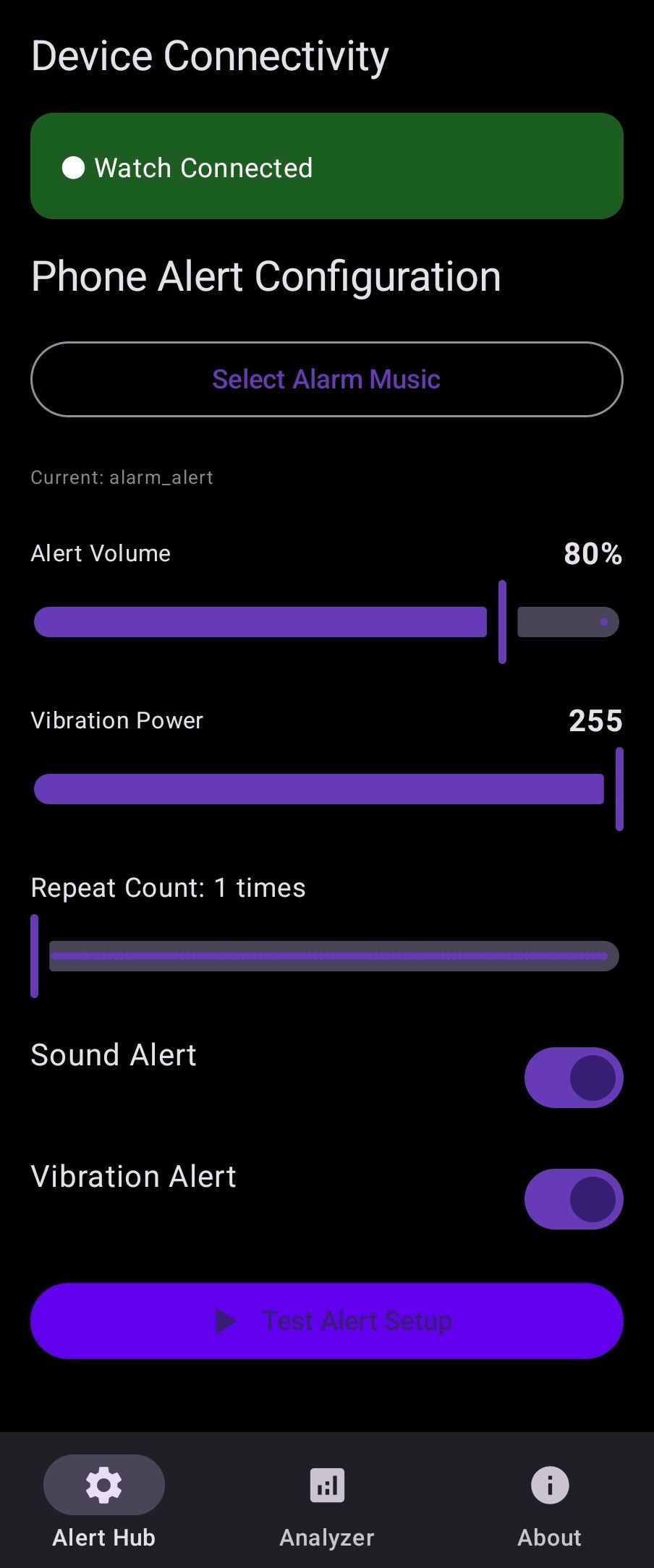
- Pro: Maintain a Bluetooth connection between watch and phone to receive custom audio cues, vibration, and visual induction flashes. (Airplane mode is okay as long as Bluetooth is active).
- Post-sleep: Press STOP upon waking. You can review your sleep stages and alert triggers directly on the watch to calibrate parameters.
Understanding the Algorithm
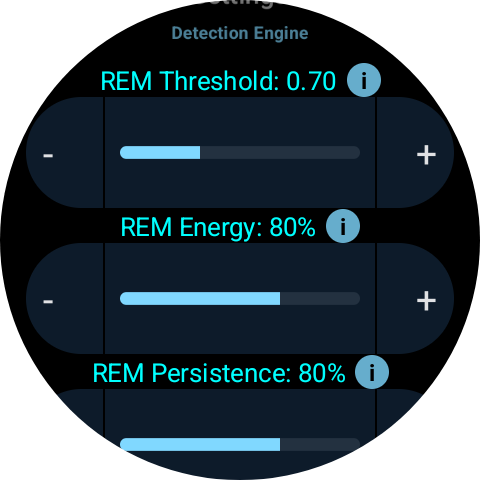
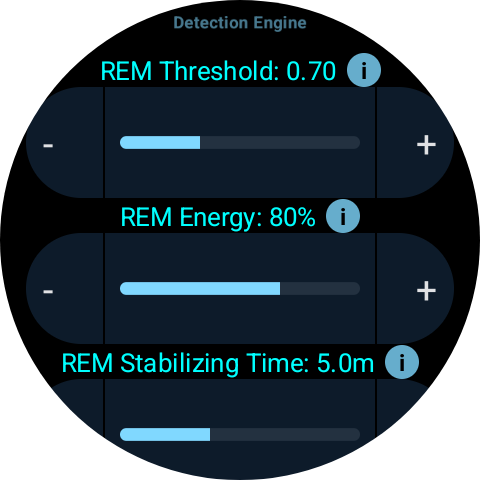
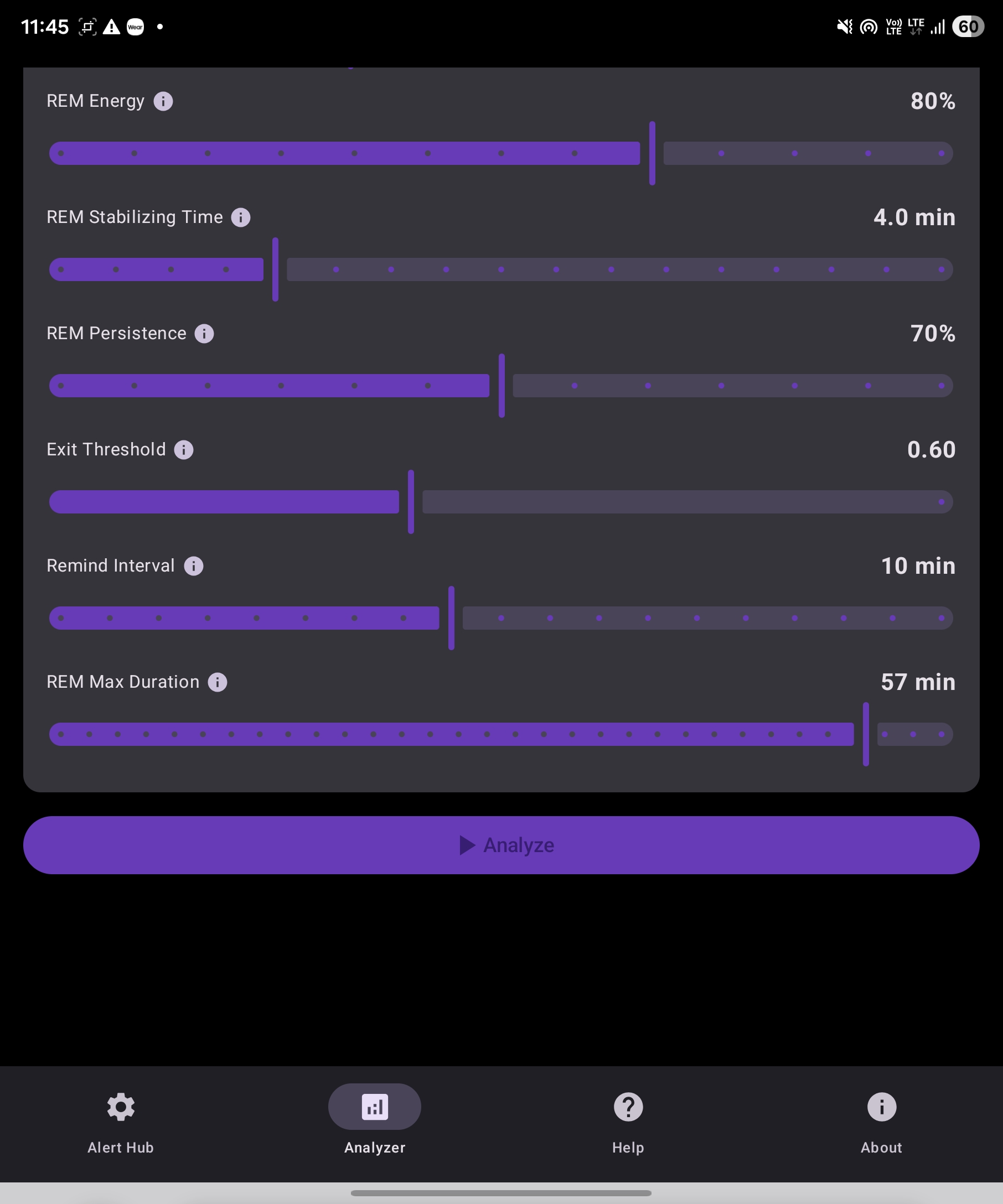
- REM Threshold: The sensitivity for entering REM. Lower for easier detection; higher to prevent false positives.
- REM Energy: The energy level required to trigger an alert. Lower this if you are sleep-deprived.
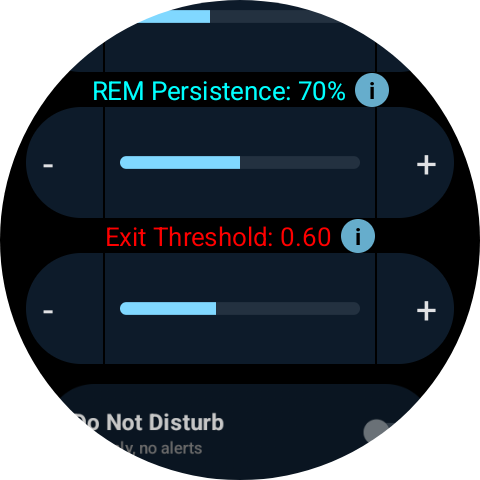
- REM Persistence: How long the detection stays active. Increase this for repeated cues within one dream.
- Exit Threshold: The standard for ending a REM detection. Higher values exit sooner for better accuracy.
3-Minute Quick Start Guide
1: 60 Seconds Before Bed
Check Stats on watch, do a Sync Test via Test Alert, press START.
2: Decoding REM Signals
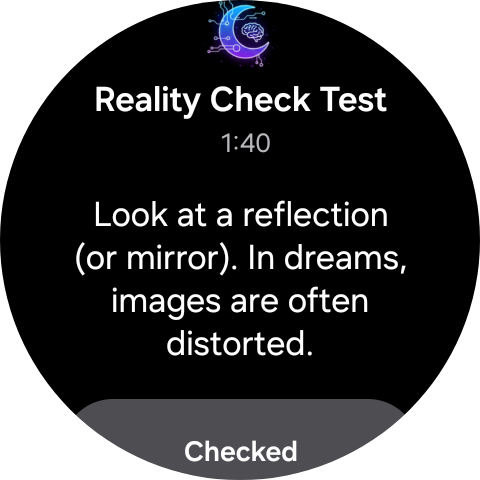
When REM is detected, the watch (and Pro phone) will trigger your chosen haptic, audio, or visual cues. Recognize the cue in your dream to achieve lucidity.
3: Pro Feature - Master the Parameters
Export .lucid files to your phone Analyzer to replay and fine-tune your thresholds using Fast Sim mode.
FAQ: White Dots & Alerts
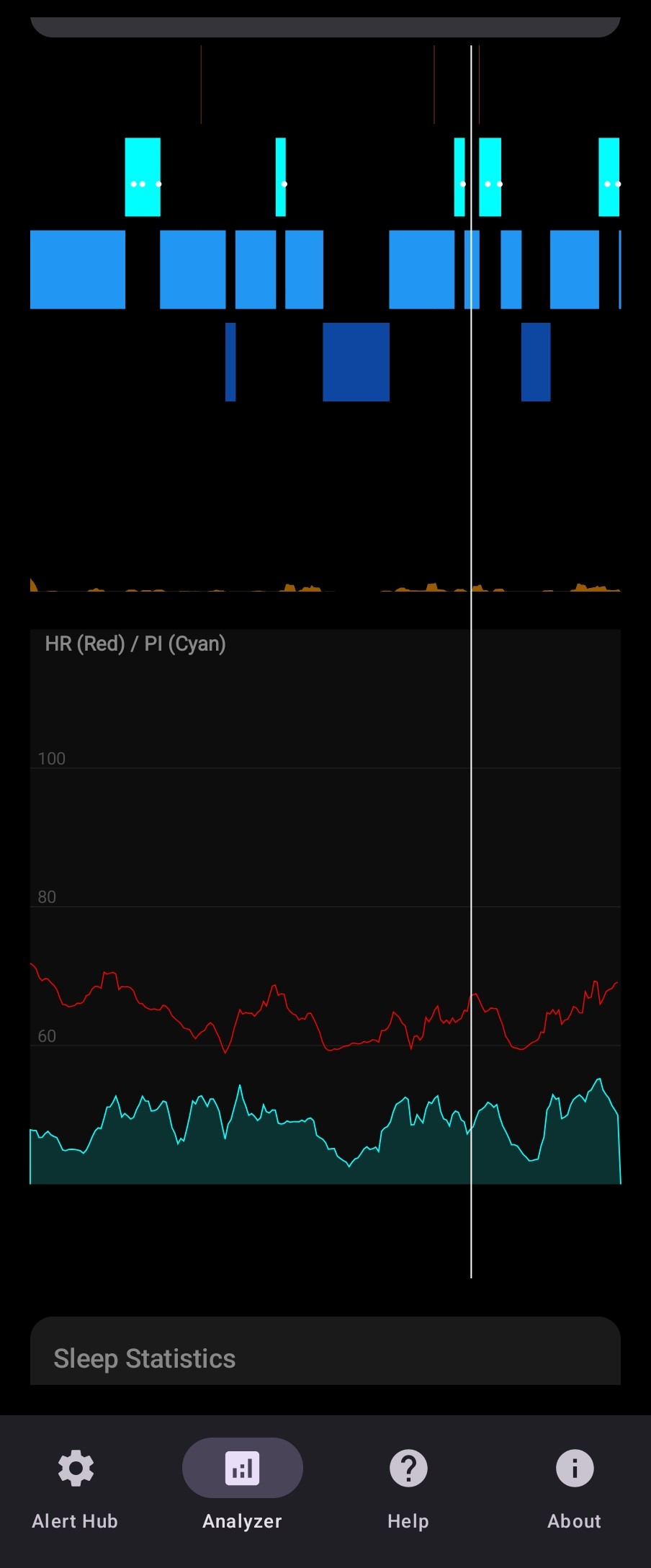
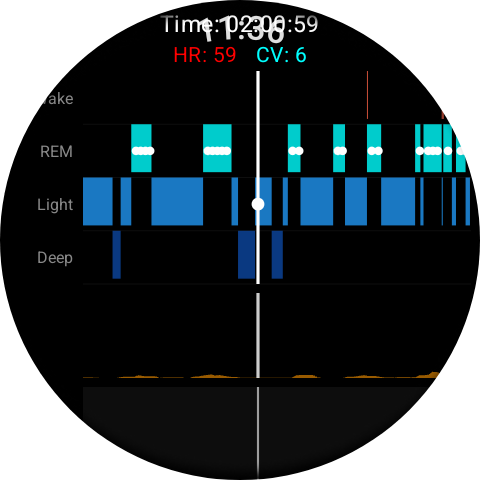
Q: What do the "White Dots" on the sleep graph represent?
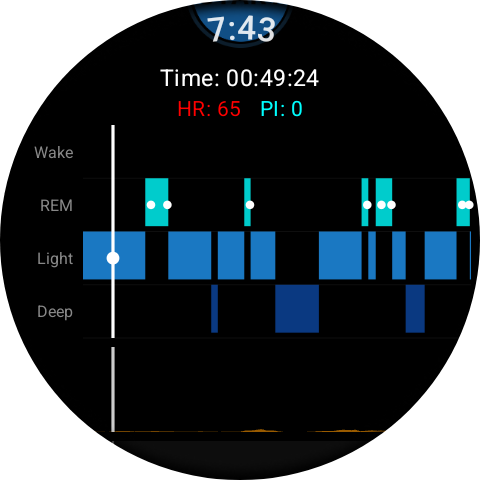
A: They represent the REM Trigger Points. The system initiates the alert exactly 5 minutes after it confirms you have entered the REM stage. This delay ensures you are deep enough into the dream state to prevent premature awakening.
Battery Tip: Because Lucid Wake processes high-frequency sensor data in real-time, please make sure your device has at least 90% battery before starting the session.
Wear OS Watch: Wireless ADB Debugging Setup
Follow these steps to enable Wireless ADB debugging on your Wear OS watch:
-
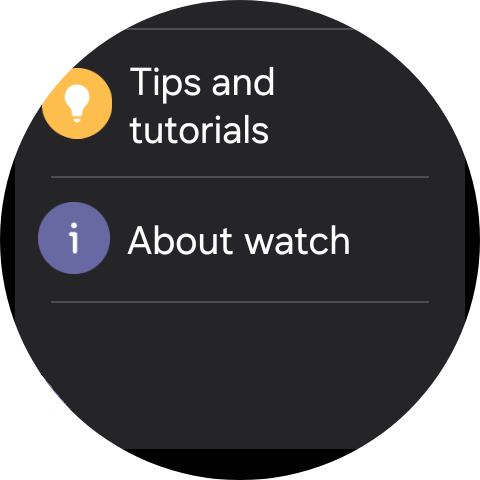
Open the watch settings and scroll to the bottom to find About watch.
-
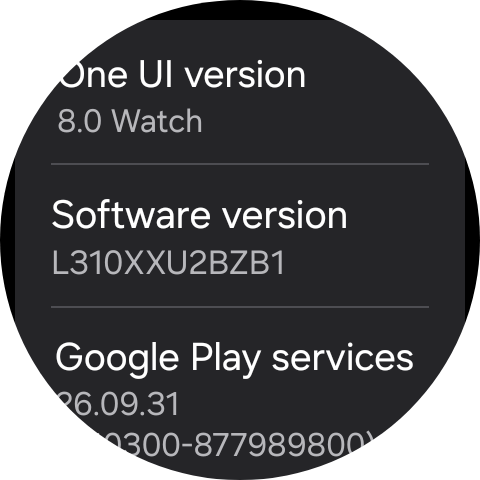
Find Software version and tap it repeatedly until Developer mode appears.
-
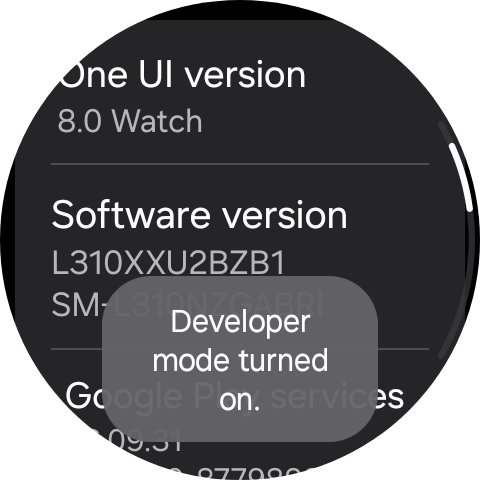
Developer mode is enabled.
-
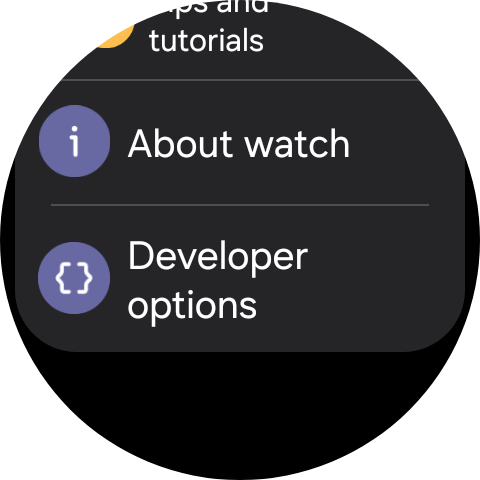
Return to the top page; Developer options will now appear below About watch. Tap to enter.
-
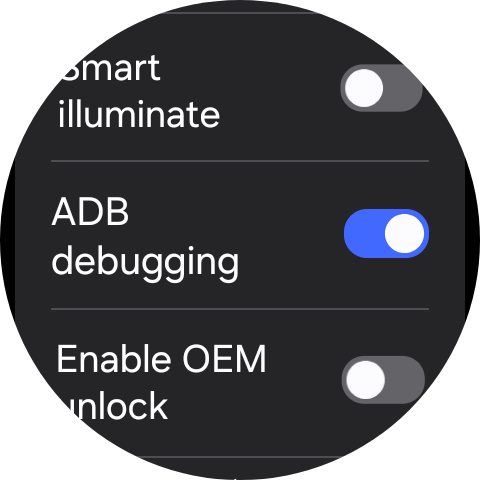
Enable ADB debugging.
-
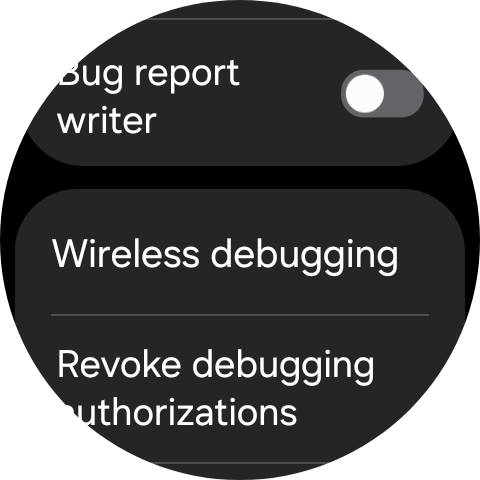
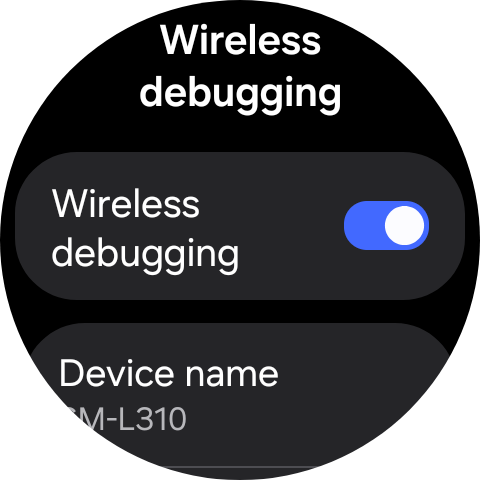
Ensure the watch's Wi-Fi is connected to your phone's wireless network. Tap Wireless debugging.
-
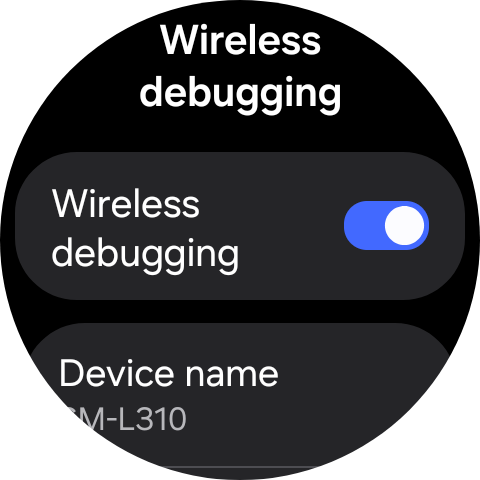
Wireless debugging is enabled.
Phone to Watch: ADB Whitelist Setup with WearOS Manager
To enable advanced Pro features, you need to whitelist Lucid Wake on your watch using ADB. This process uses the WearOS Manager app on your phone.
-
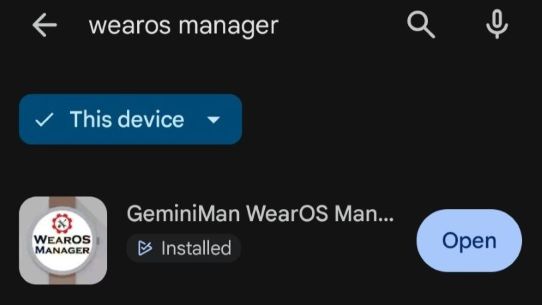
Search for and install WearOS Manager in the Play Store.
-
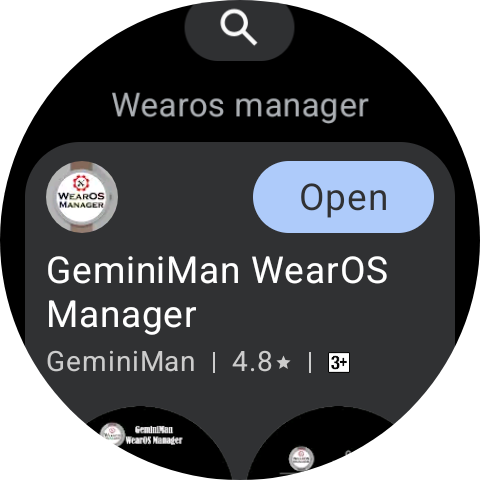
Search for and install WearOS Manager on your watch from the Play Store.
-
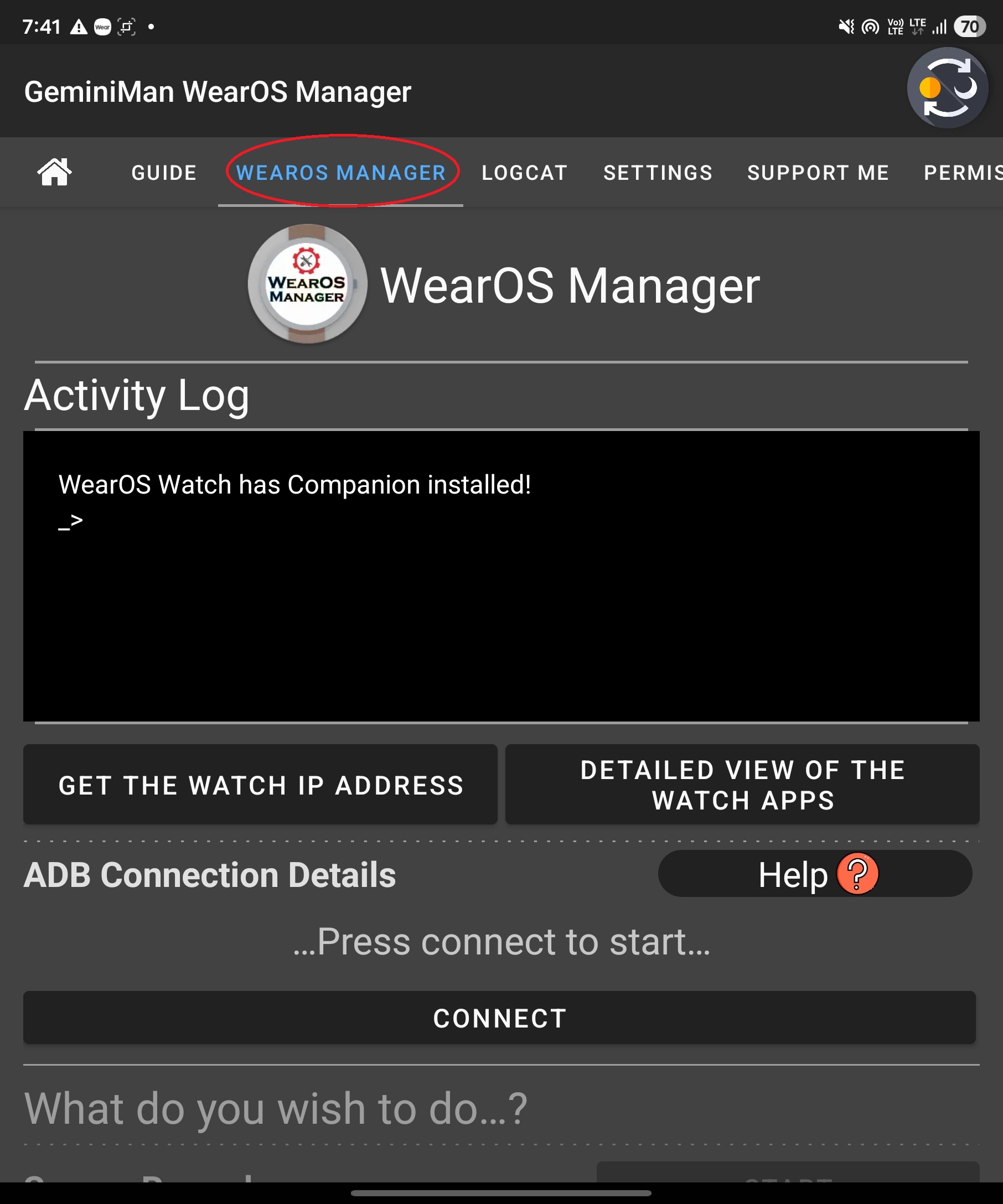
Open WearOS Manager on your phone and tap the WearOS Manager tab.
-
Enable Wi-Fi on your phone and ensure the watch is connected to your phone's Wi-Fi. Enable Wireless debugging on the watch (as shown in the previous section) and tap GET THE WATCH IP ADDRESS.
-
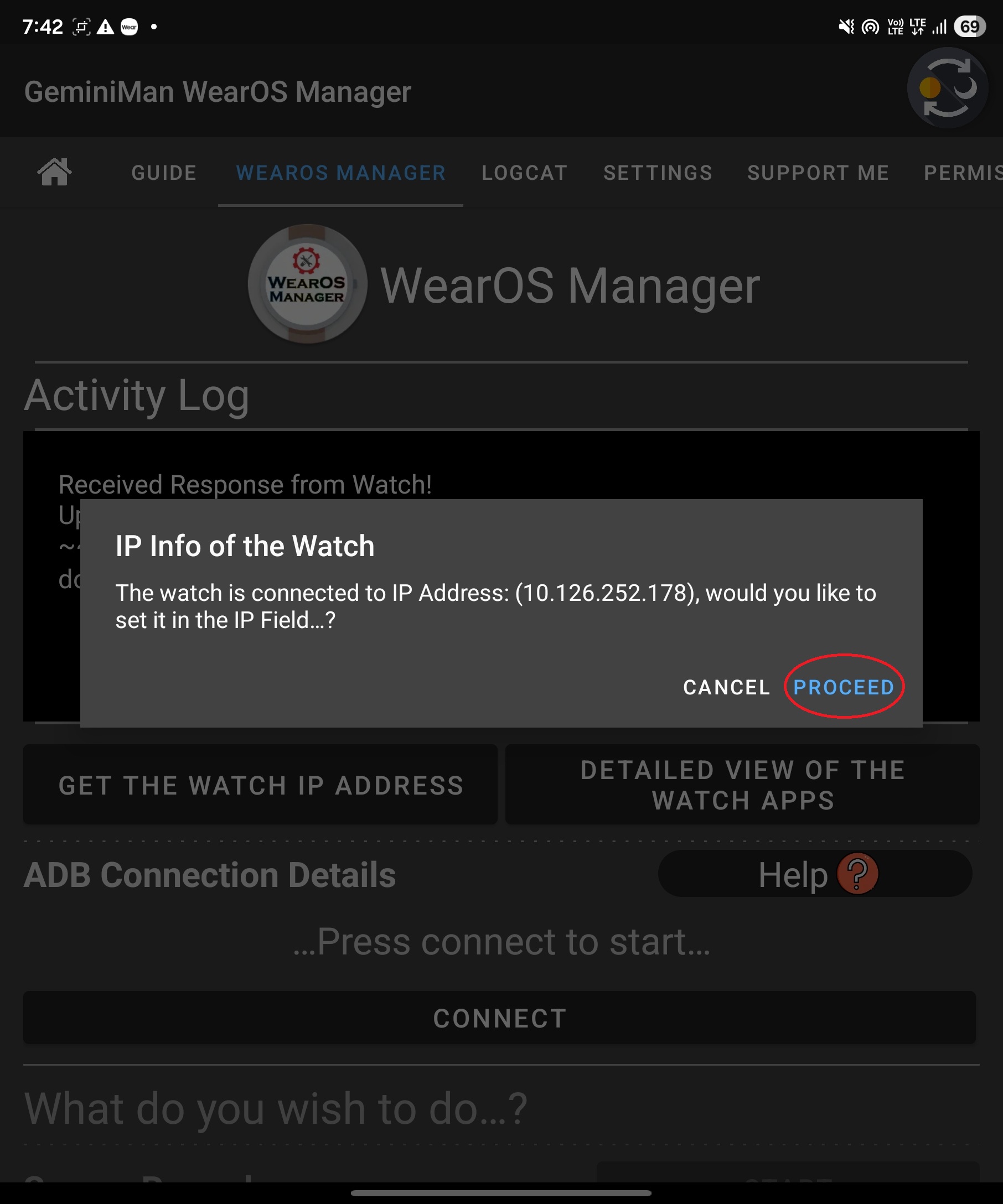
If the watch is connected to your phone's Wi-Fi, it will display "IP found." Tap PROCEED.
-
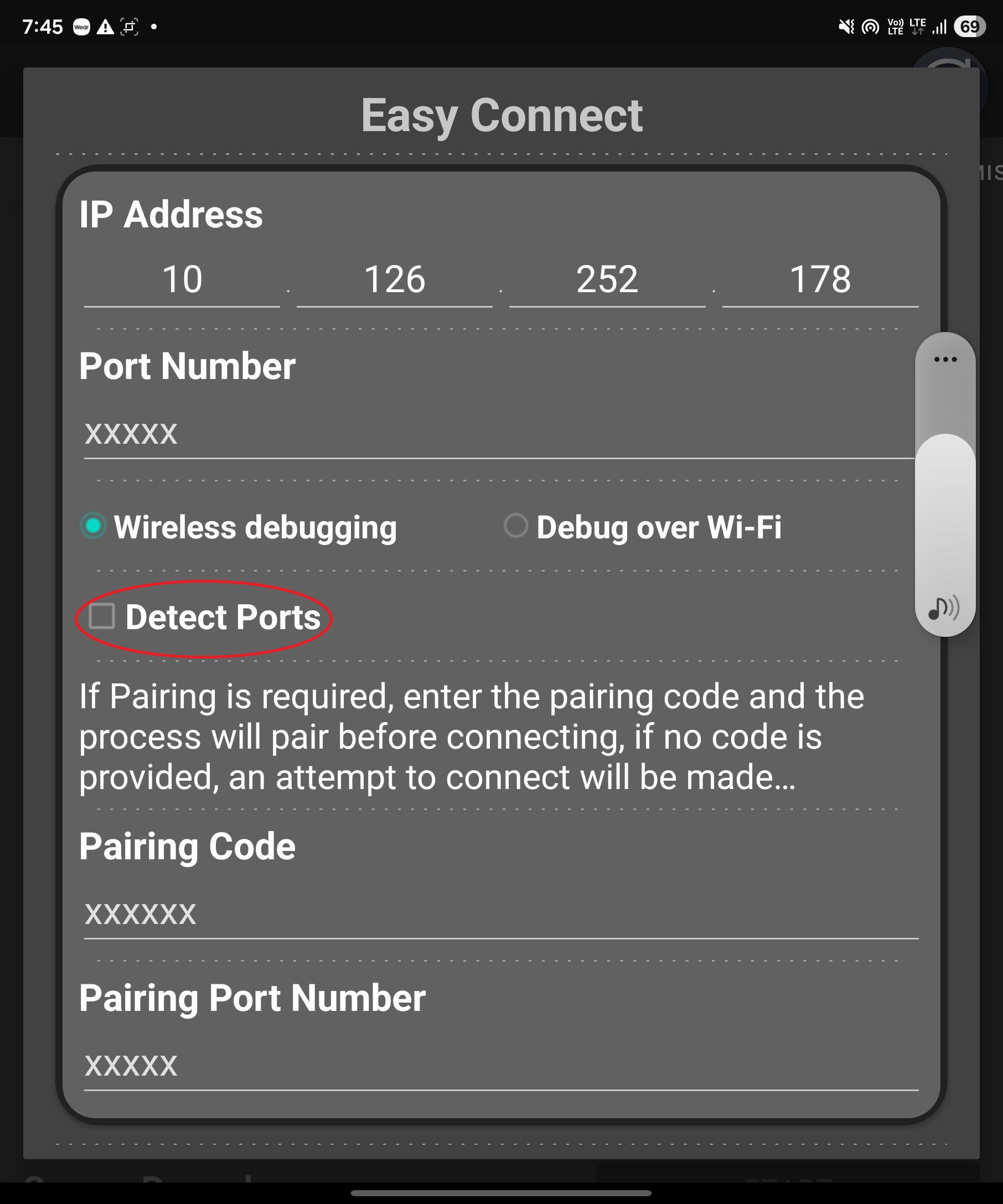
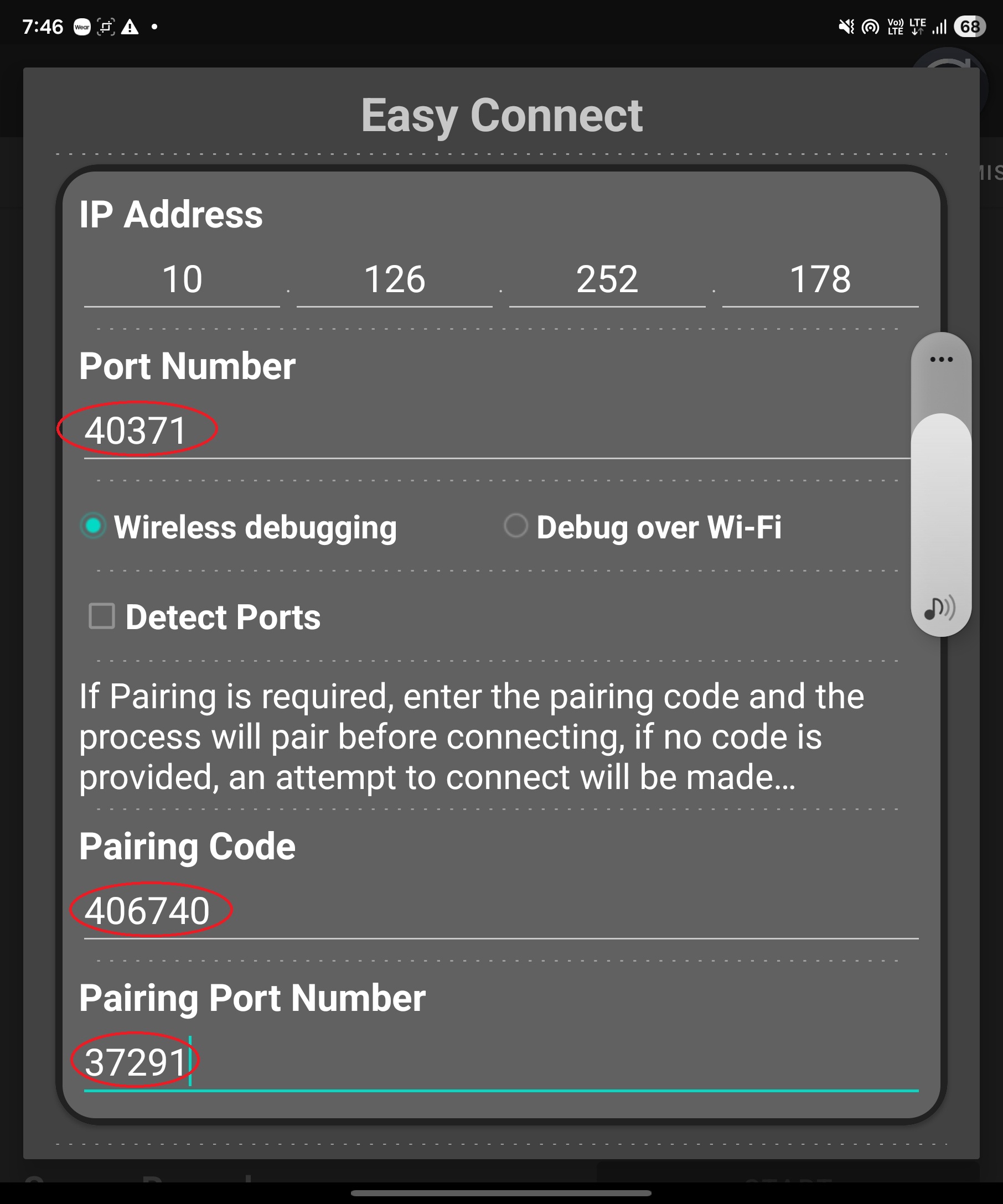
The connection interface will open. Uncheck "Detect Ports."
-
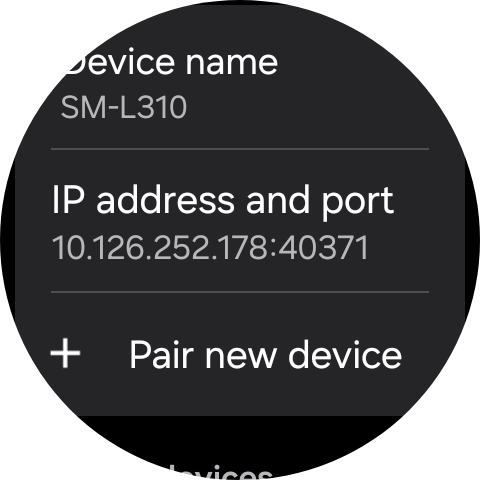
Note down the watch's port (40371 in this example). Press + Pair new device.
-
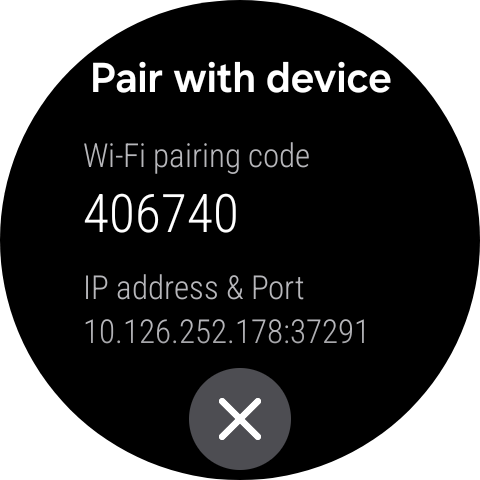
The pairing window on the watch will open. Note down the pairing code 406740 and the pairing port 37291.
-
Enter the port number noted on the previous page of the watch (40371 in this example), Pairing Code 406740, and Pairing Port Number 37291. Press the Start button below.
-
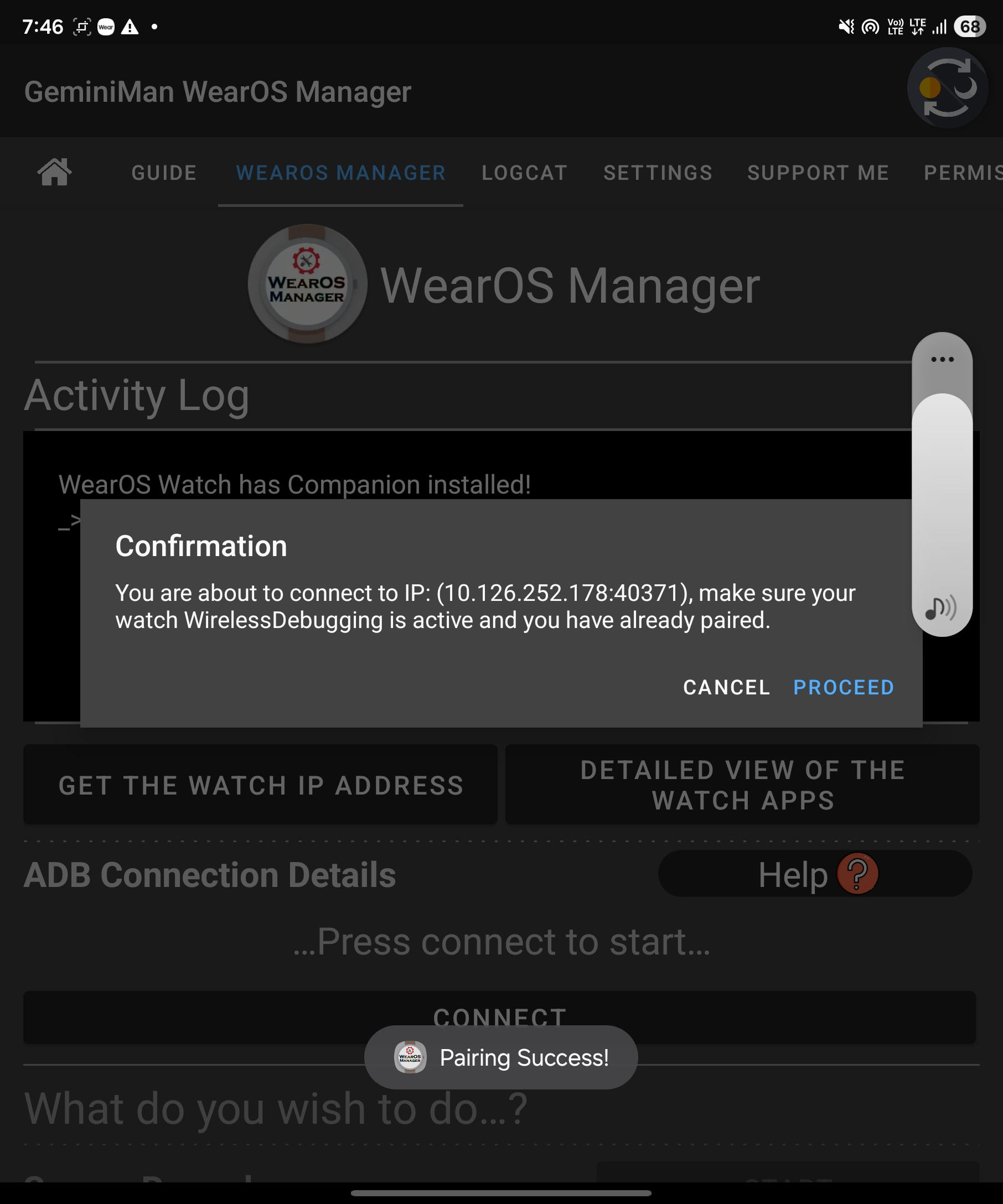
Connection is about to begin.
-
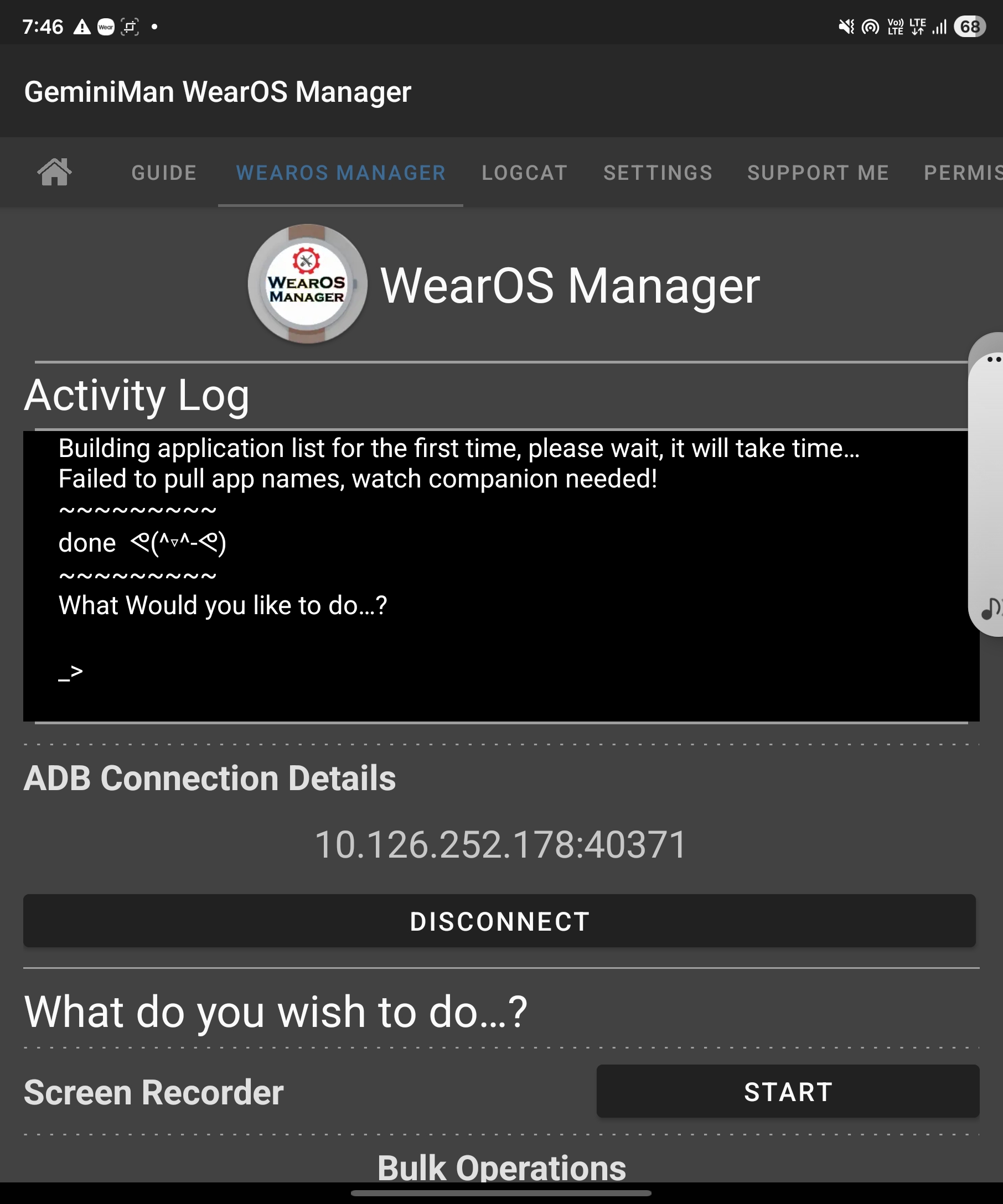
Connection successful.
-
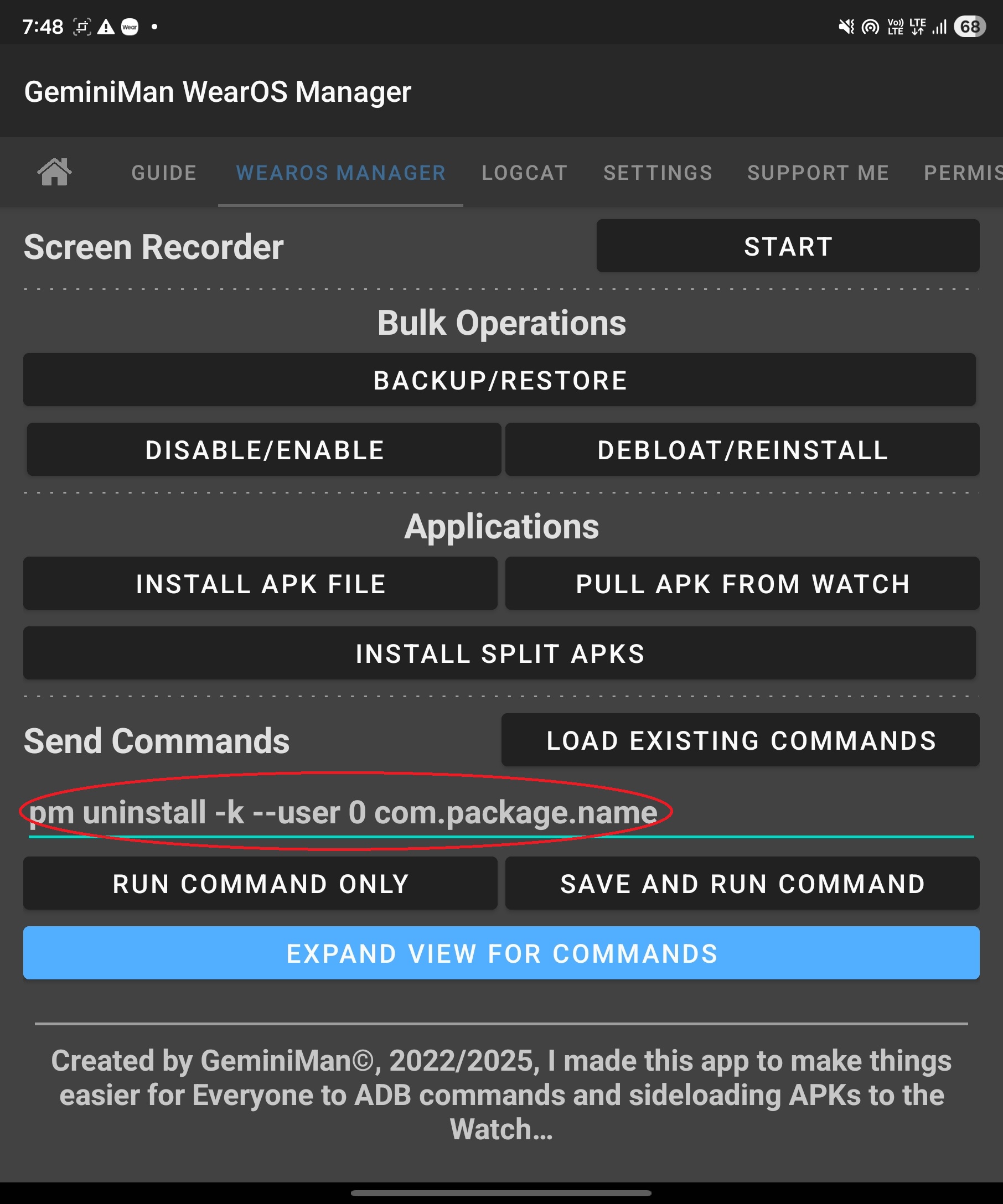
Scroll down the screen to find Send Commands.
-
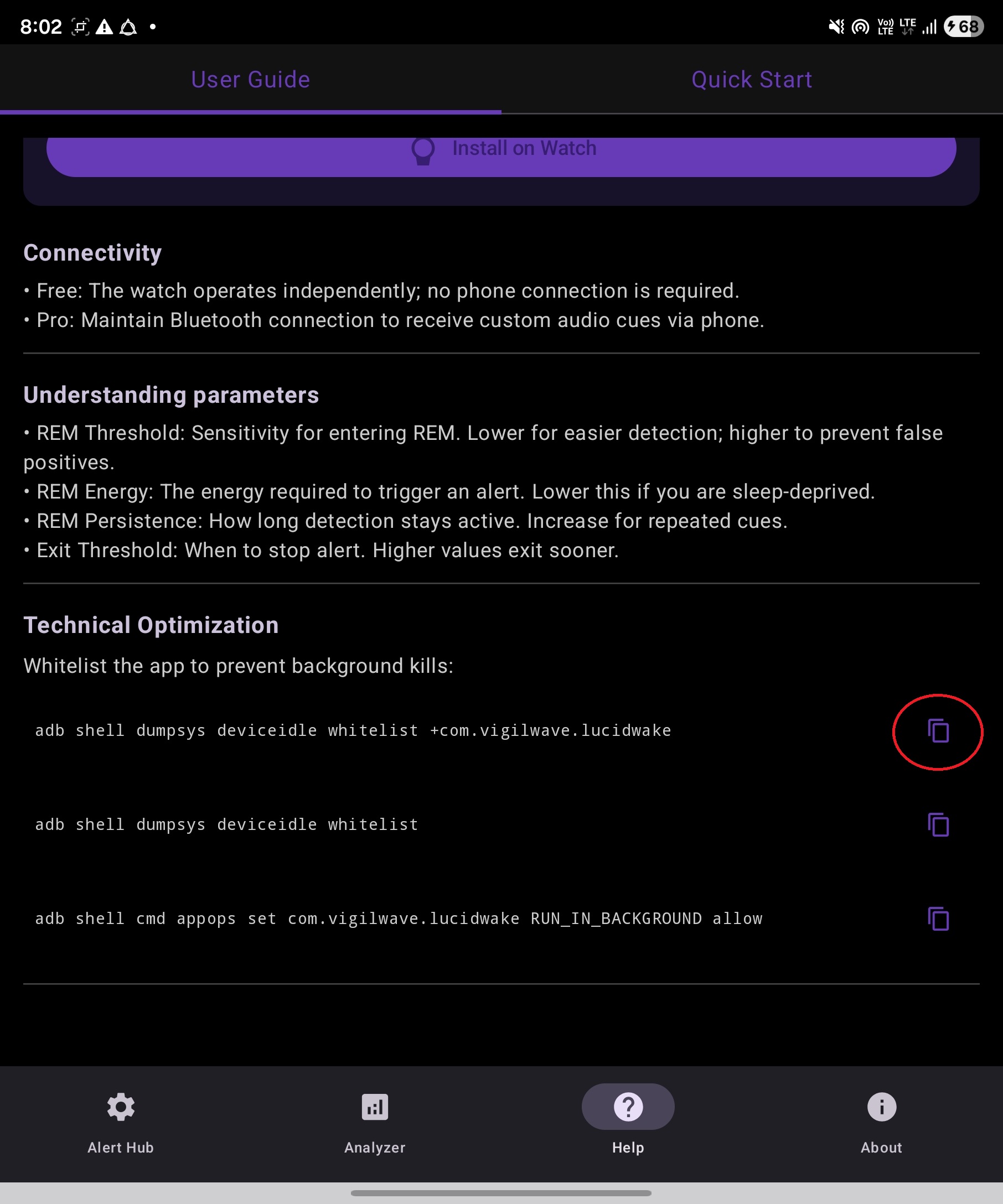
Open the Help tab in the Lucid Wake Mobile App. There are three ADB commands below. Click the copy icon to the right of the first command to copy the ADB command.
-
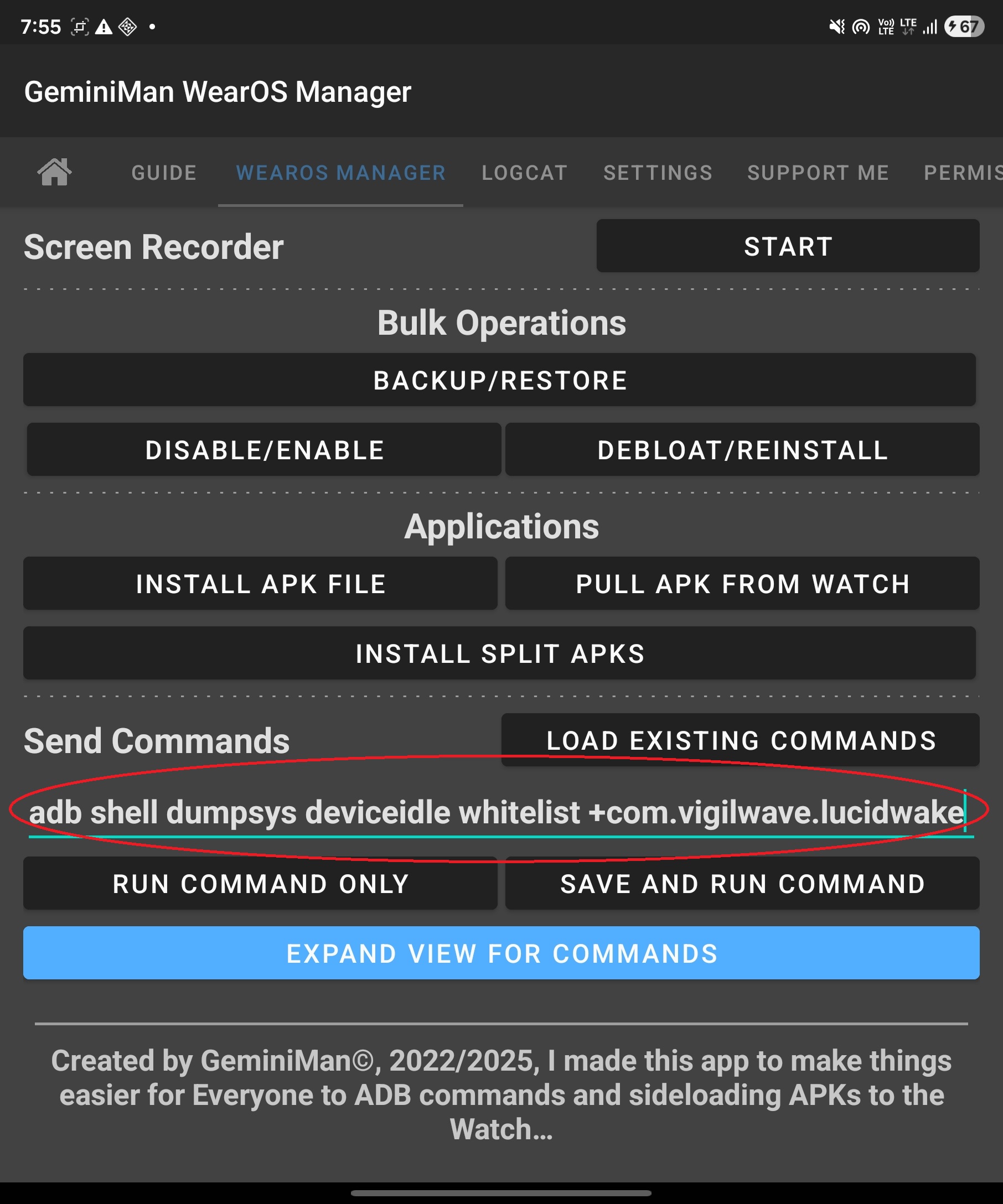
Paste the ADB command into the Send Commands field and press RUN COMMAND ONLY.
-
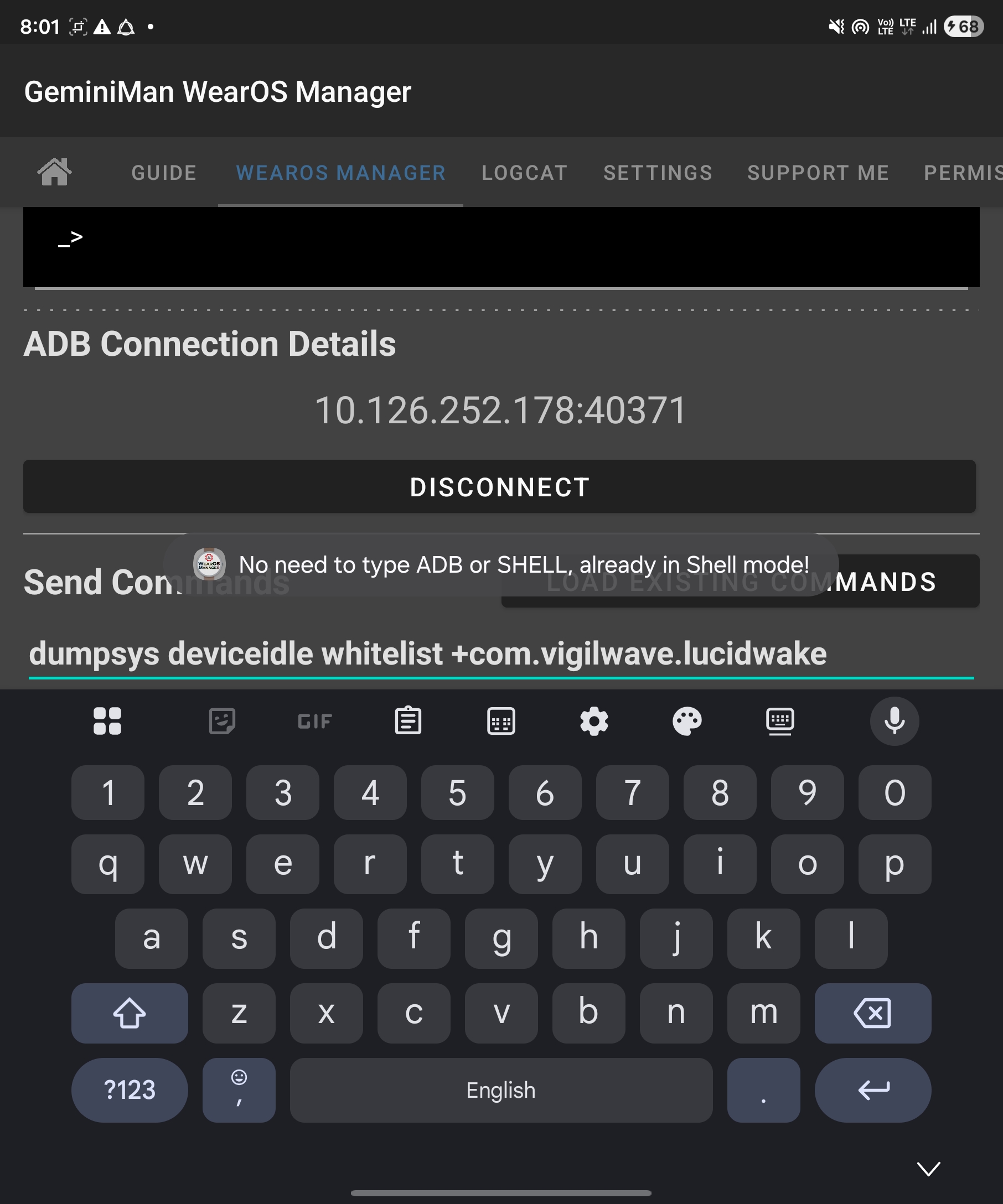
The command automatically converts to the correct command.
-
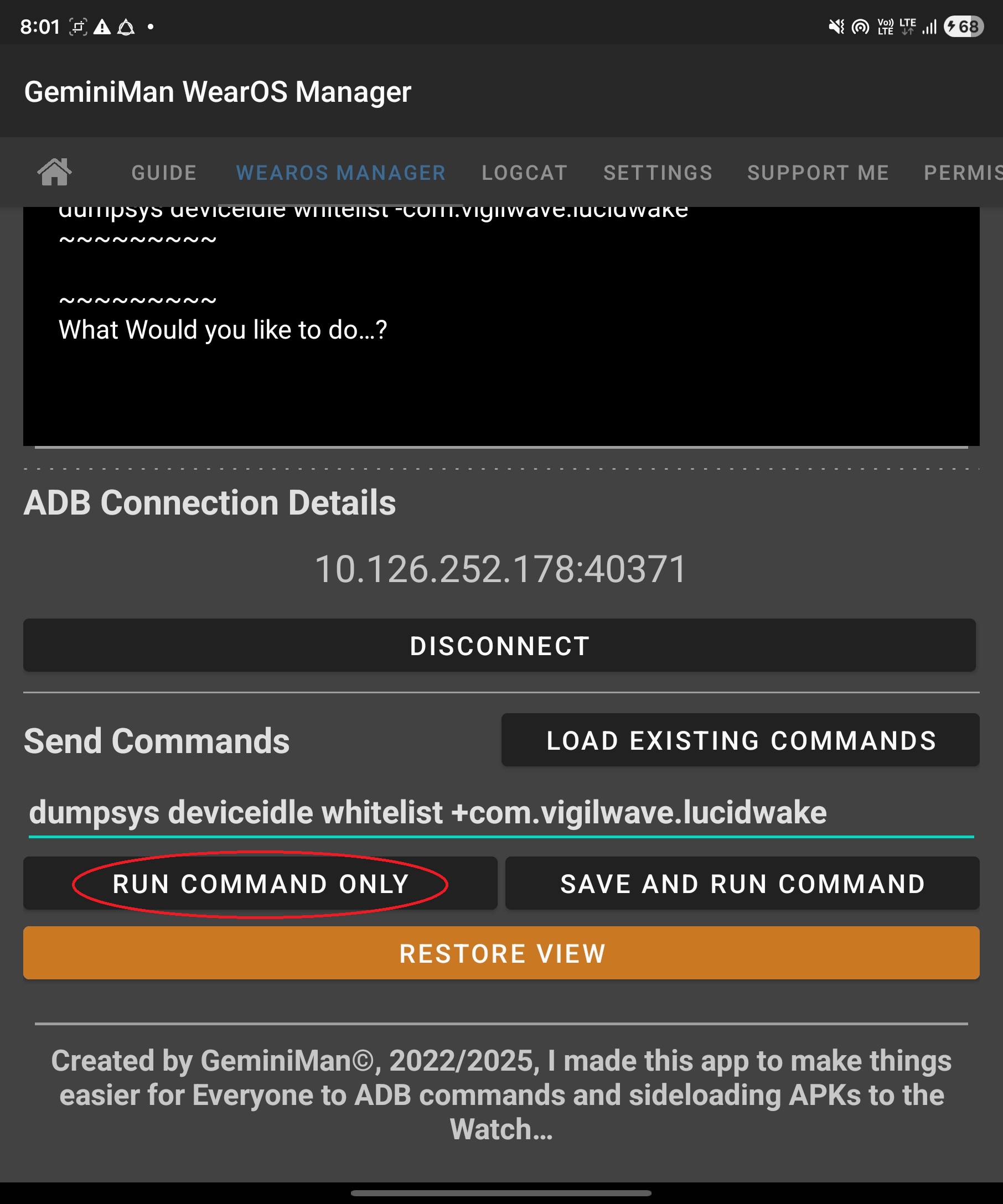
Press RUN COMMAND ONLY again.
-
The command bar at the top shows successful addition to the whitelist.
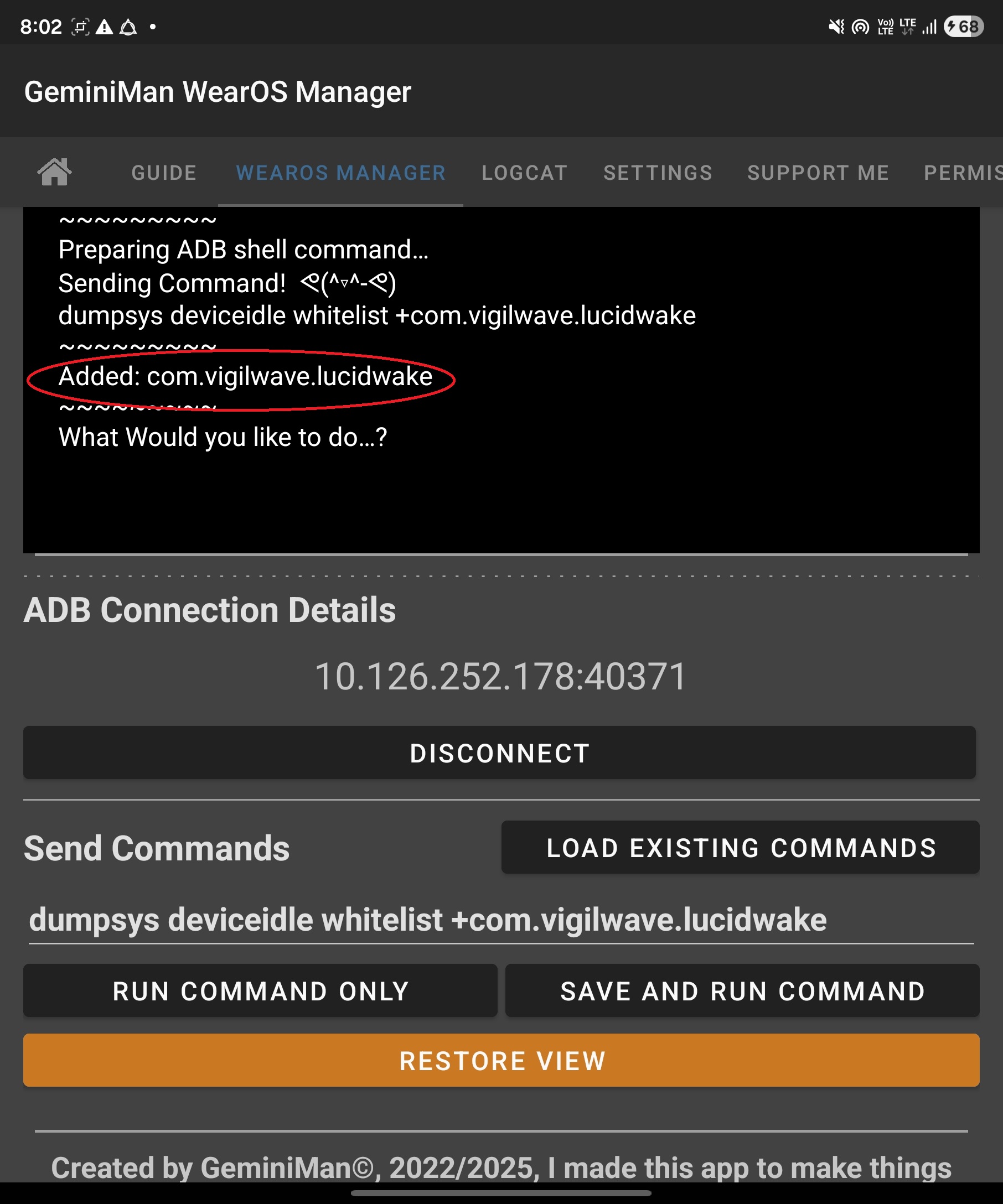
-
Copy the second ADB command from Lucid Wake Mobile, paste it into Send Commands, and press RUN COMMAND ONLY.
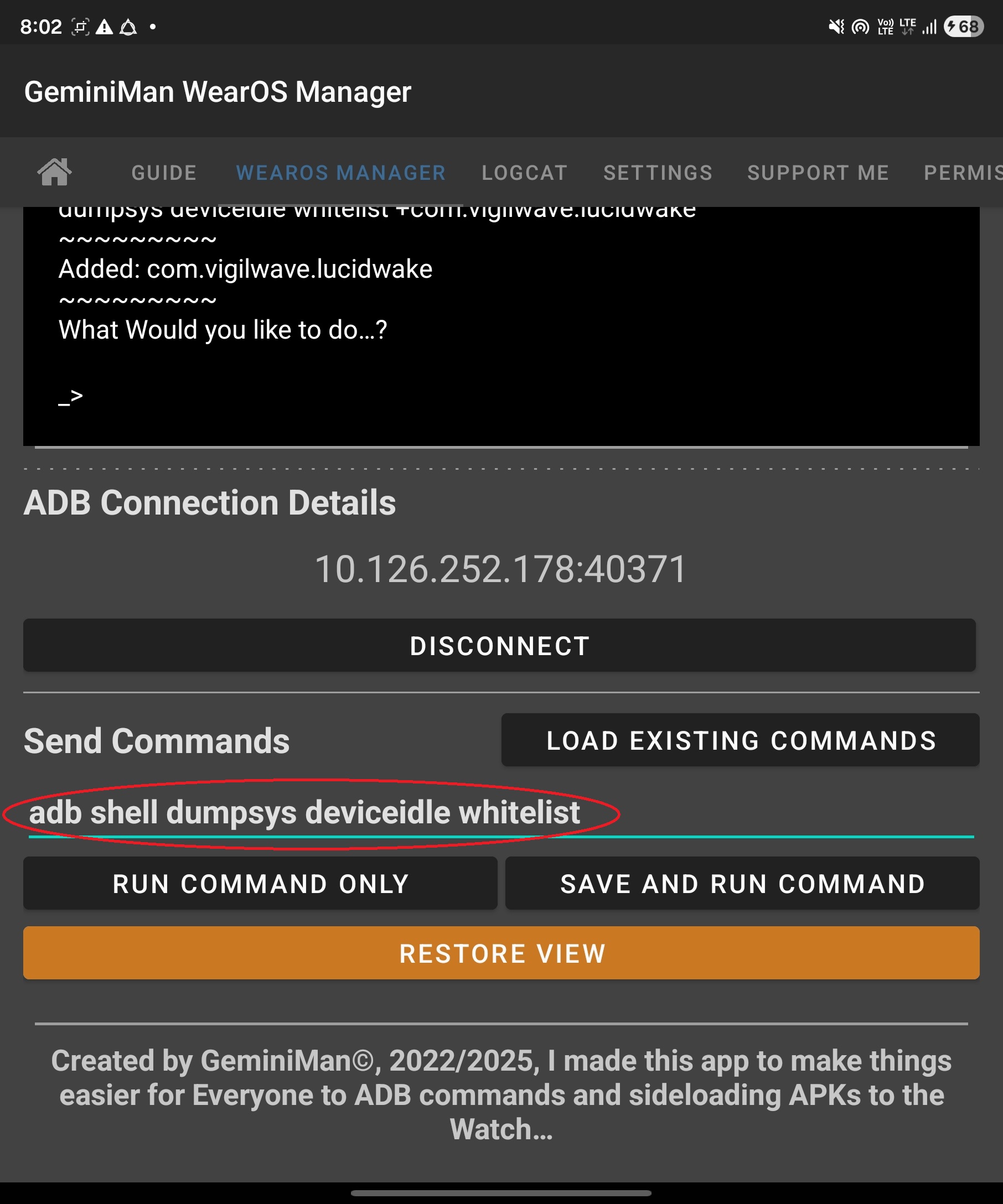
-
Check if com.vigilwave.lucidwake is correctly added to the whitelist.
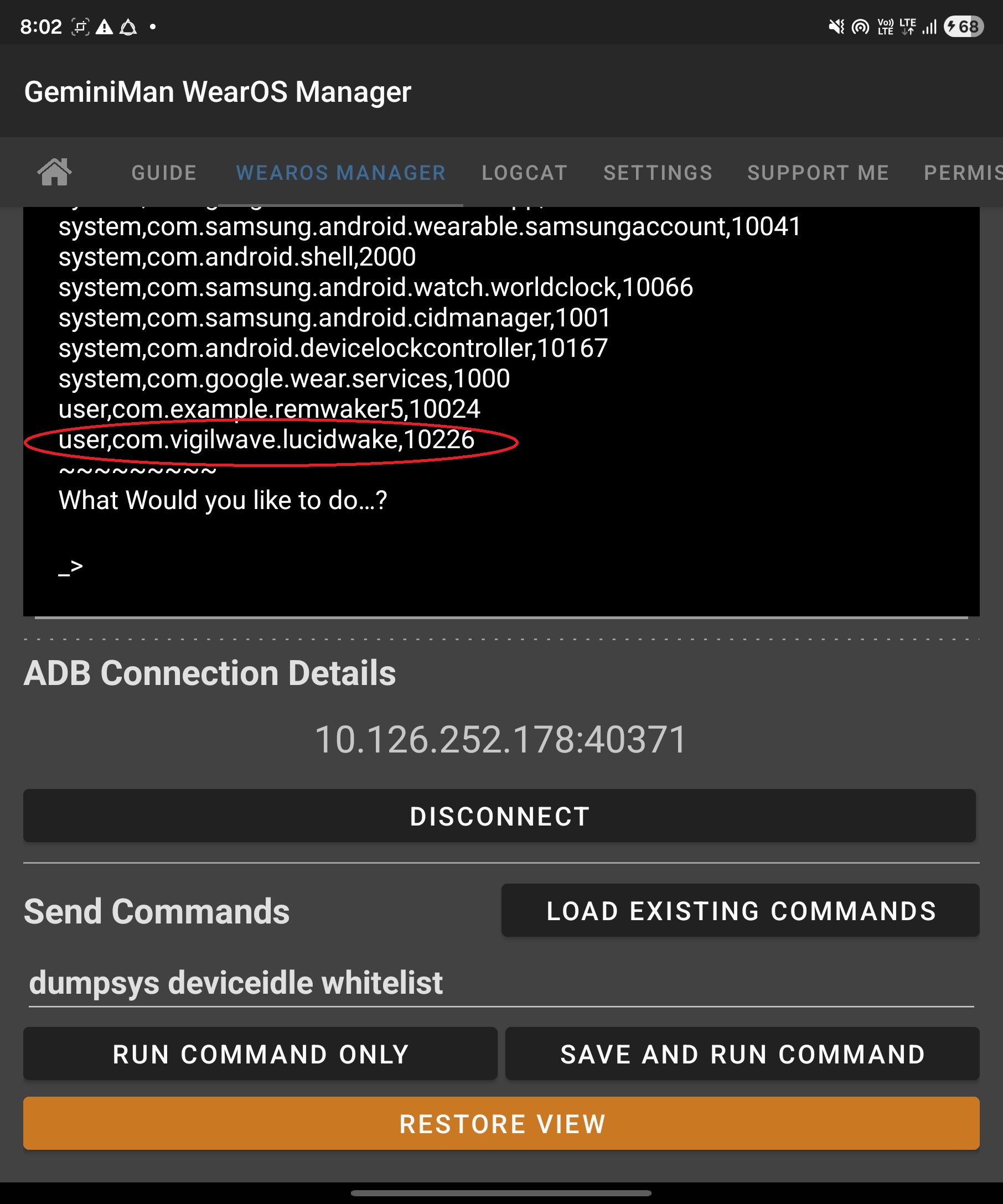
-
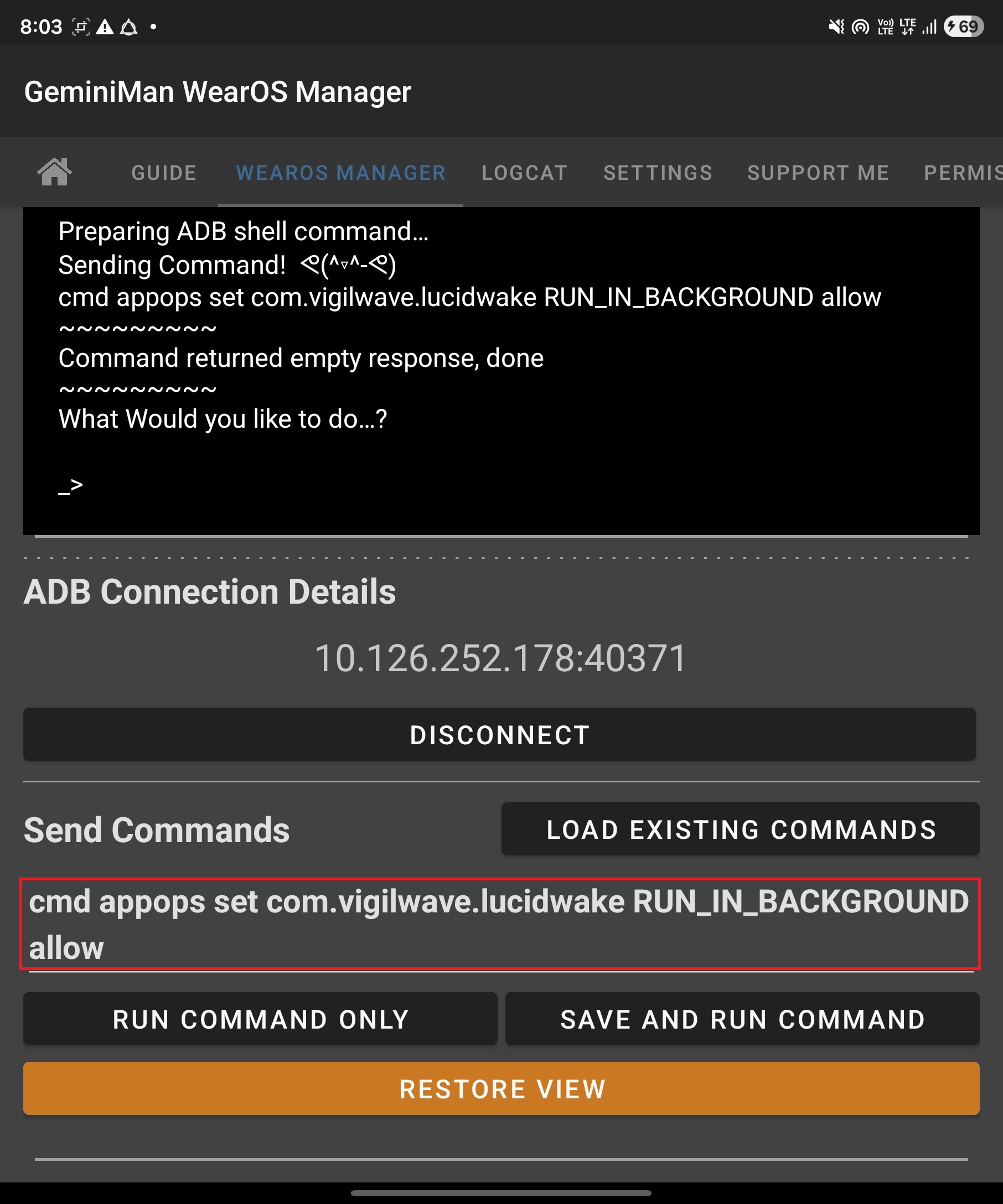
Copy the third ADB command from Lucid Wake Mobile, paste it into Send Commands, and press RUN COMMAND ONLY.
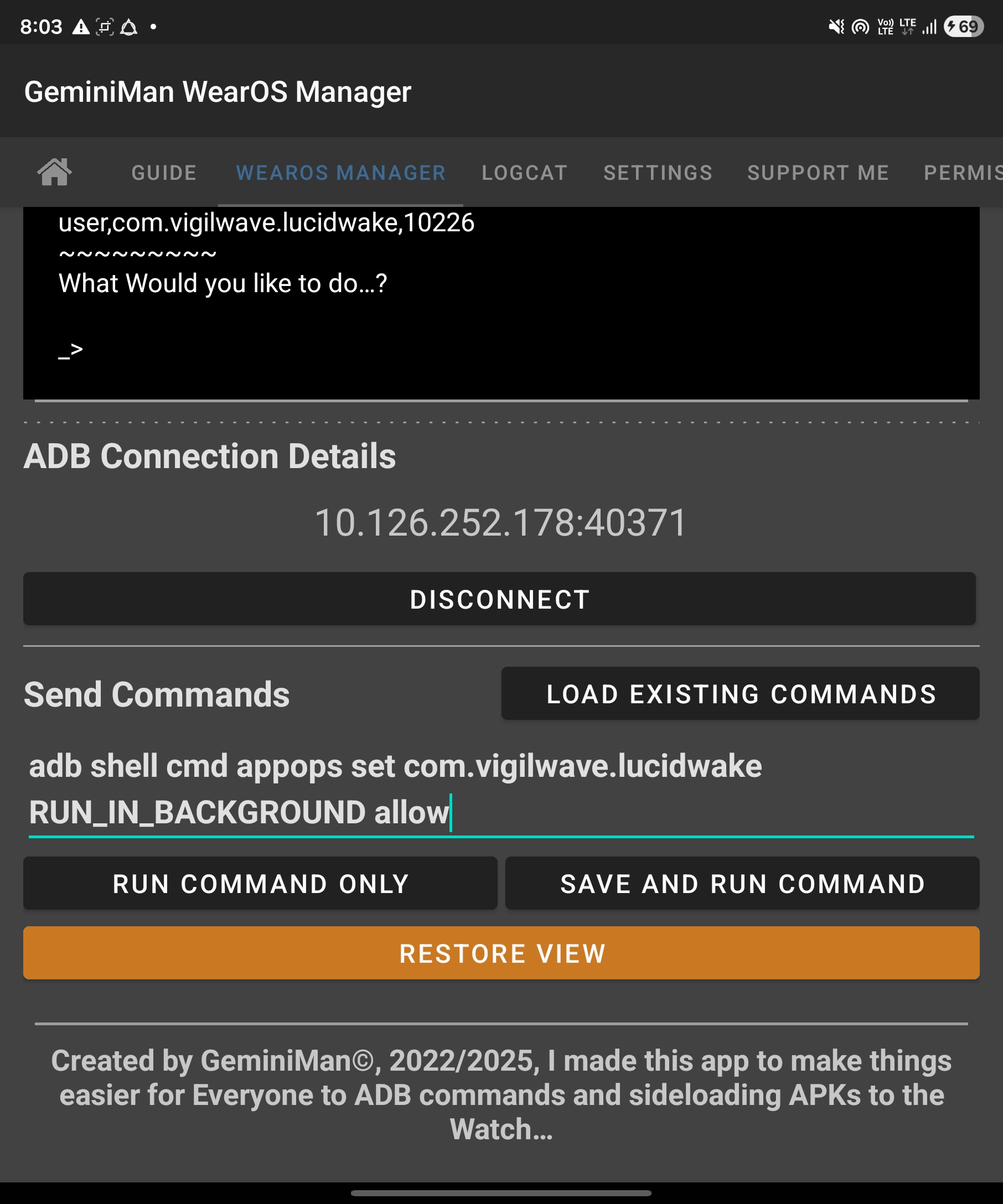
-
This command will run the app in the background. Setup complete!
Lucid Wake: Step-by-Step Operation Guide
Get started with Lucid Wake and unlock your dreaming potential!
-
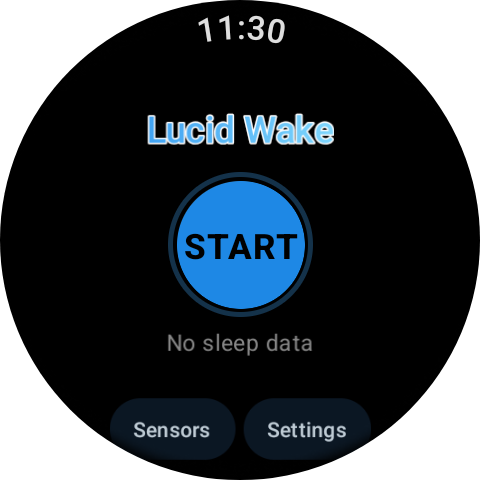
Launch the Lucid Wake watch app and tap Settings.
-
Each parameter has an explanation; the images are for reference.
-
Use the preset values shown in the images first, then fine-tune them later.
-
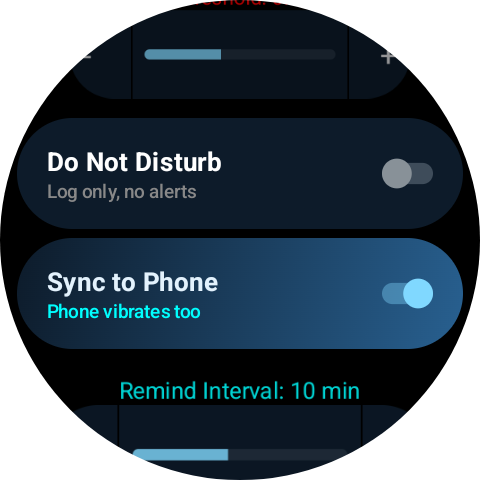
The Pro version will show "Sync to Phone," which can be used to activate the phone's notifications.
-
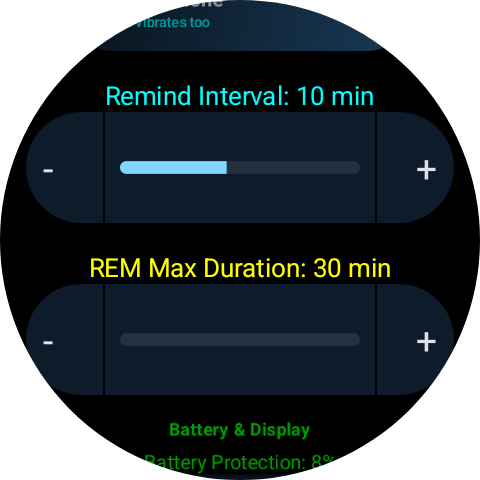
Remind Interval refers to the interval between notifications within the same REM (Remind Time) interval. Shorter intervals result in more frequent notifications.
-
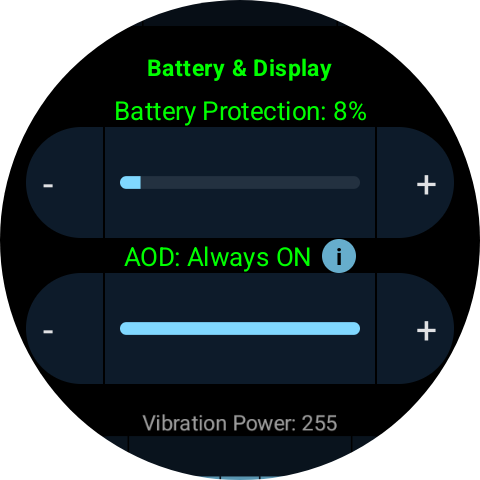
Battery Protection sets the timer to stop monitoring when the battery is low to protect it. AOD (Alert Over-the-Watch) can be set for a specific duration or turned off.
-
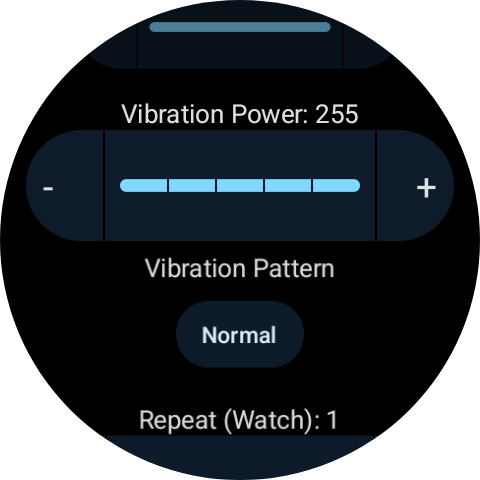
This is the watch's vibration setting. These parameters can be adjusted if you are only using the watch. If "Sync to Phone" is enabled, these parameters will not apply.
-
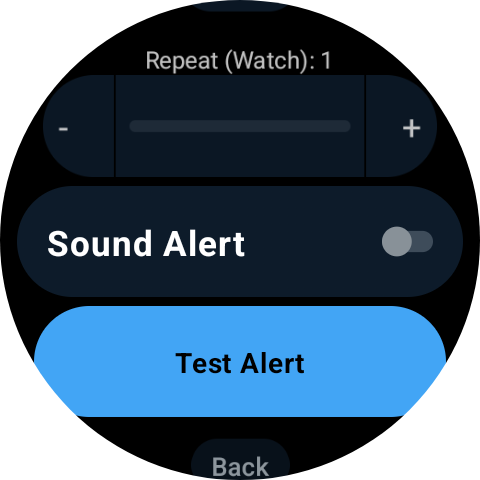
The watch will emit a beeping sound if the sound is on. You can press Test Alert to test the settings. If connected to a phone, pressing Test Alert will also trigger a notification on the phone.
-
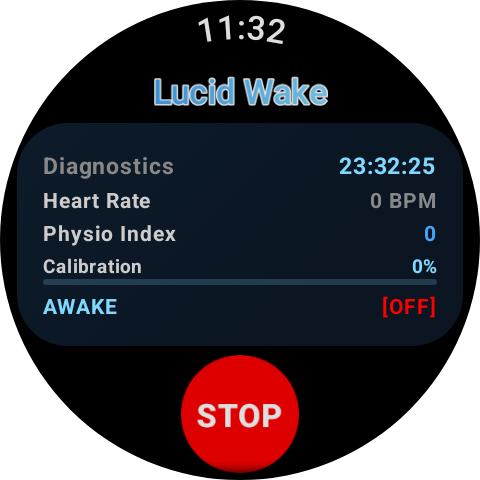
Press the START button to begin the detection; you can then go to sleep.
-
Real-time results will be displayed shortly after the process begins.
-
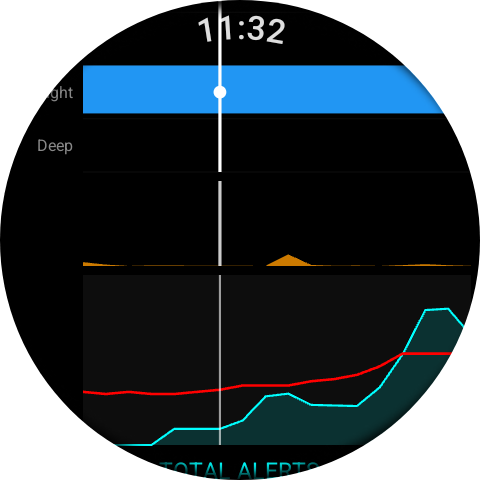
After waking up, press the STOP button to stop the monitoring. The watch will display a panoramic view of the sleep stages.
-
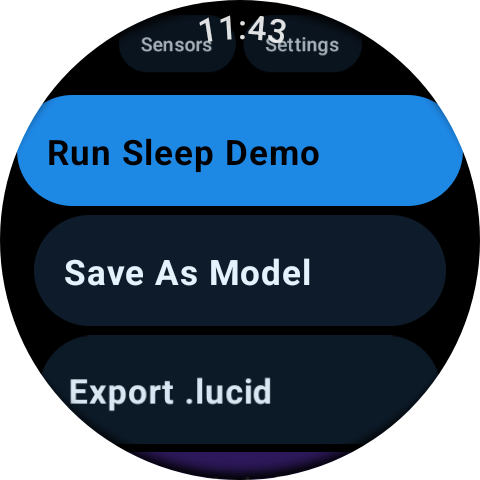
Pressing Save as Model will save the current data. You can then use Run Sleep Demo to play it back. Parameter changes made in Settings will be reflected in the results after running Sleep Demo.
-
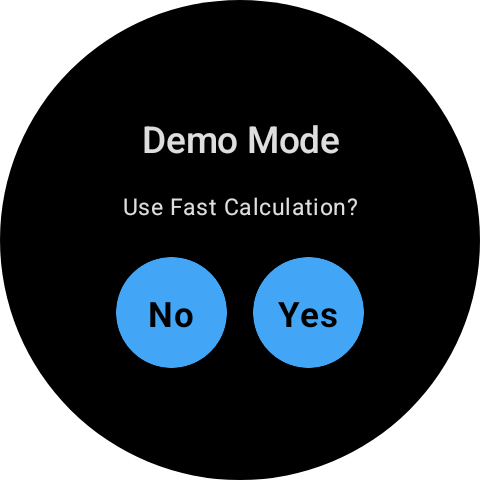
You can choose between real-time playback (slower) or fast calculation.
-
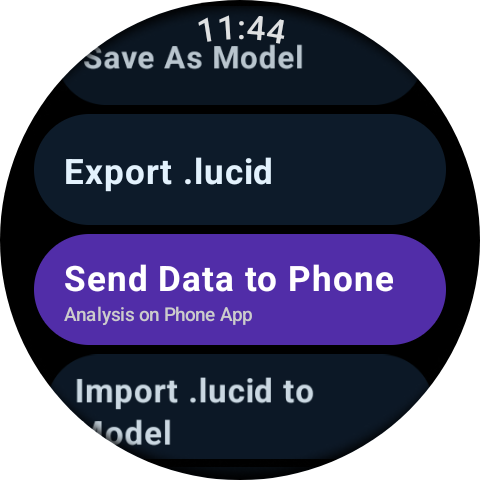
Pressing the Send Data to Phone button will select the saved .lucid file and instantly transfer it to the Download\Lucid Wake directory on your phone for easy analysis.
-
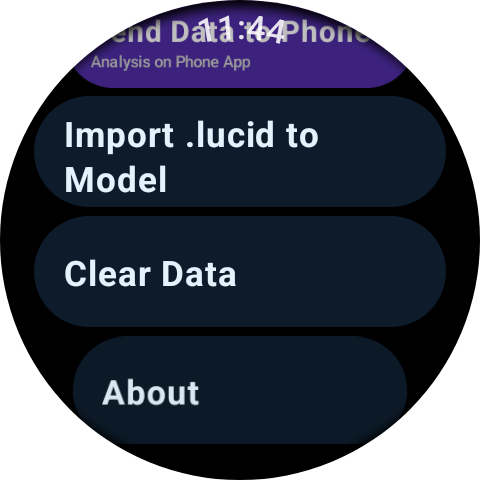
If the watch has multiple .lucid files stored, they can also be imported for playback.
-
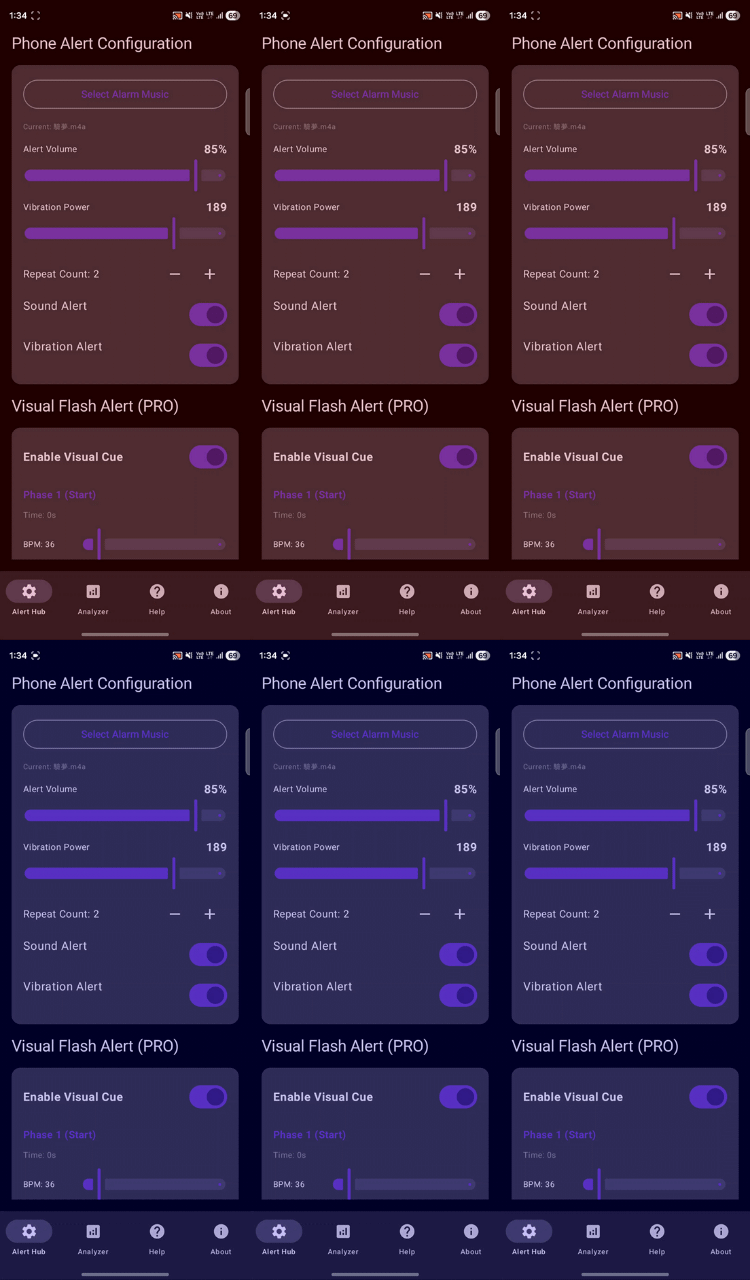
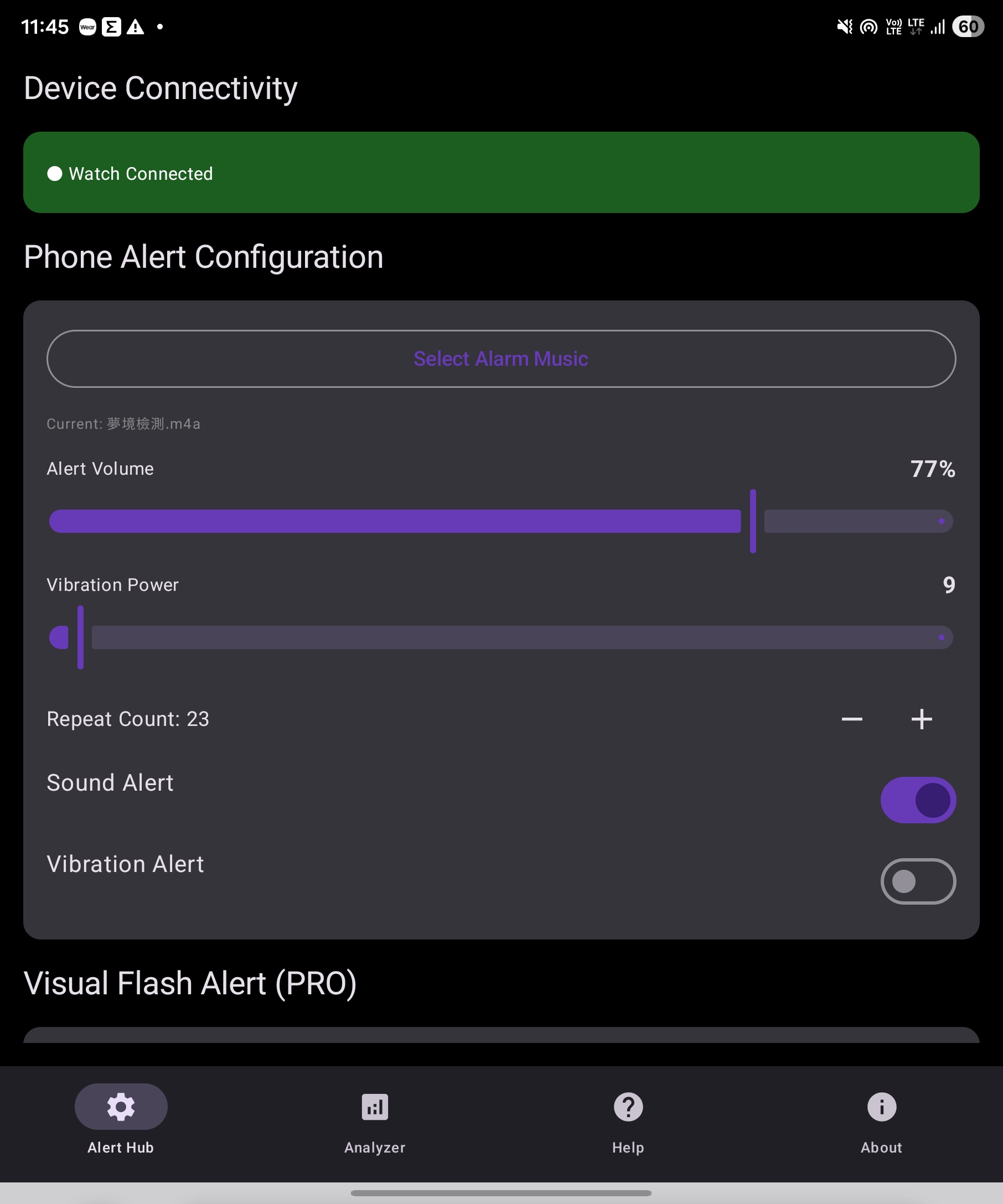
The mobile app allows you to set various alert methods, including sound, vibration, and flash, which you can adjust yourself.
-
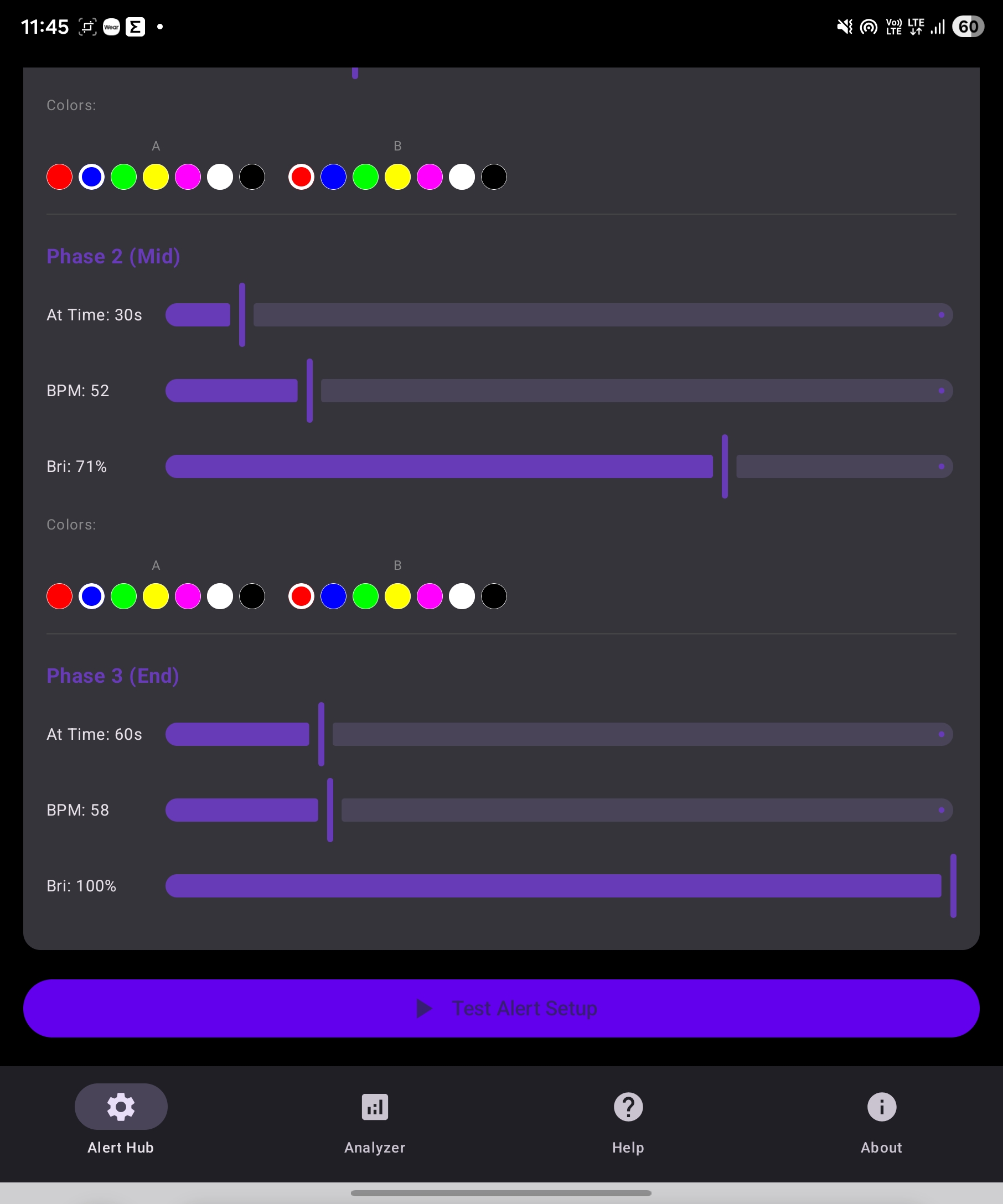
The flash alert settings interface. After setting it, you can press Test Alert Setup to experience the effect.
-
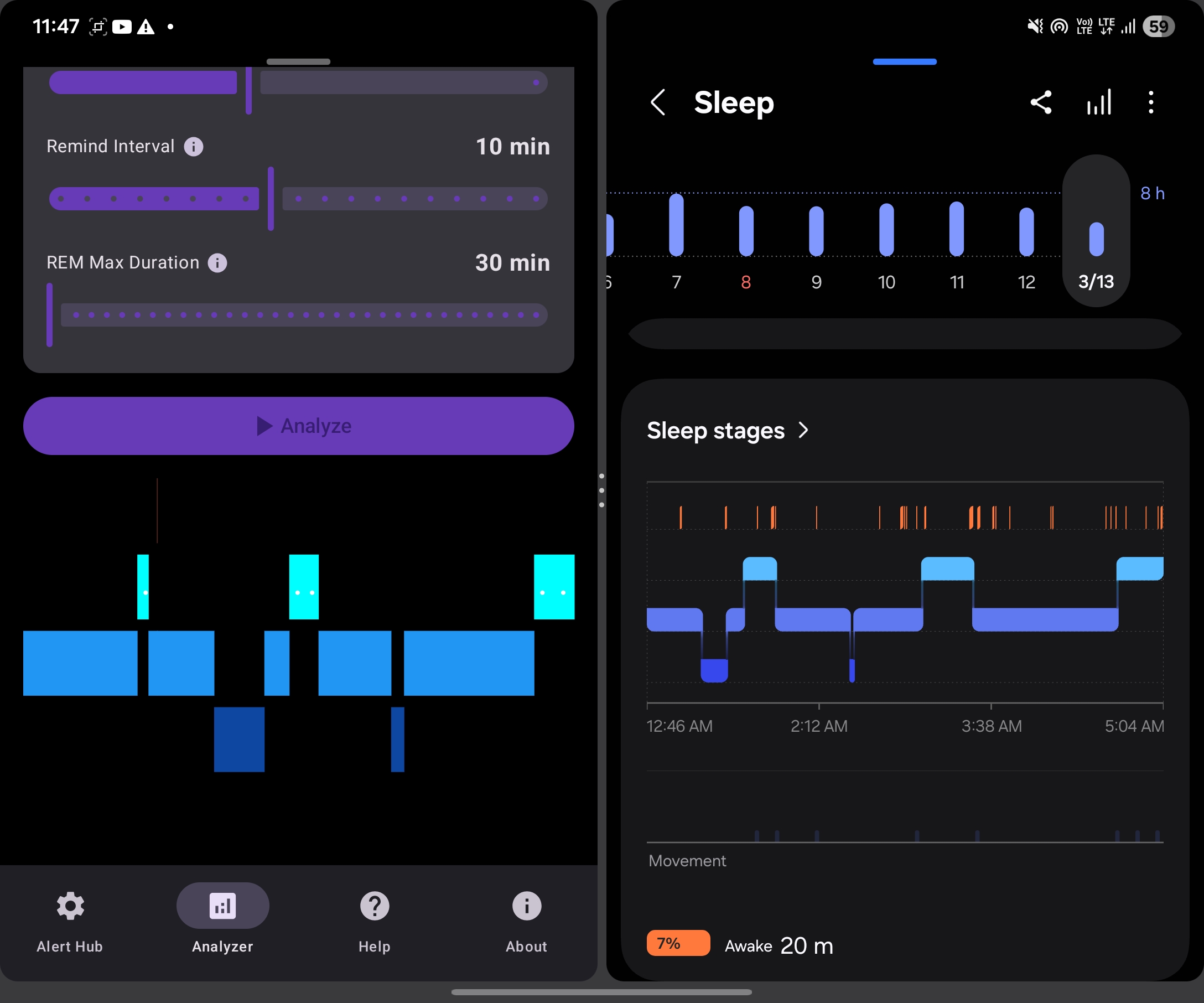
This is the Lucid Wake mobile version analysis interface. The parameters are the same as the watch. You can play back at a higher speed to test the parameters.
-
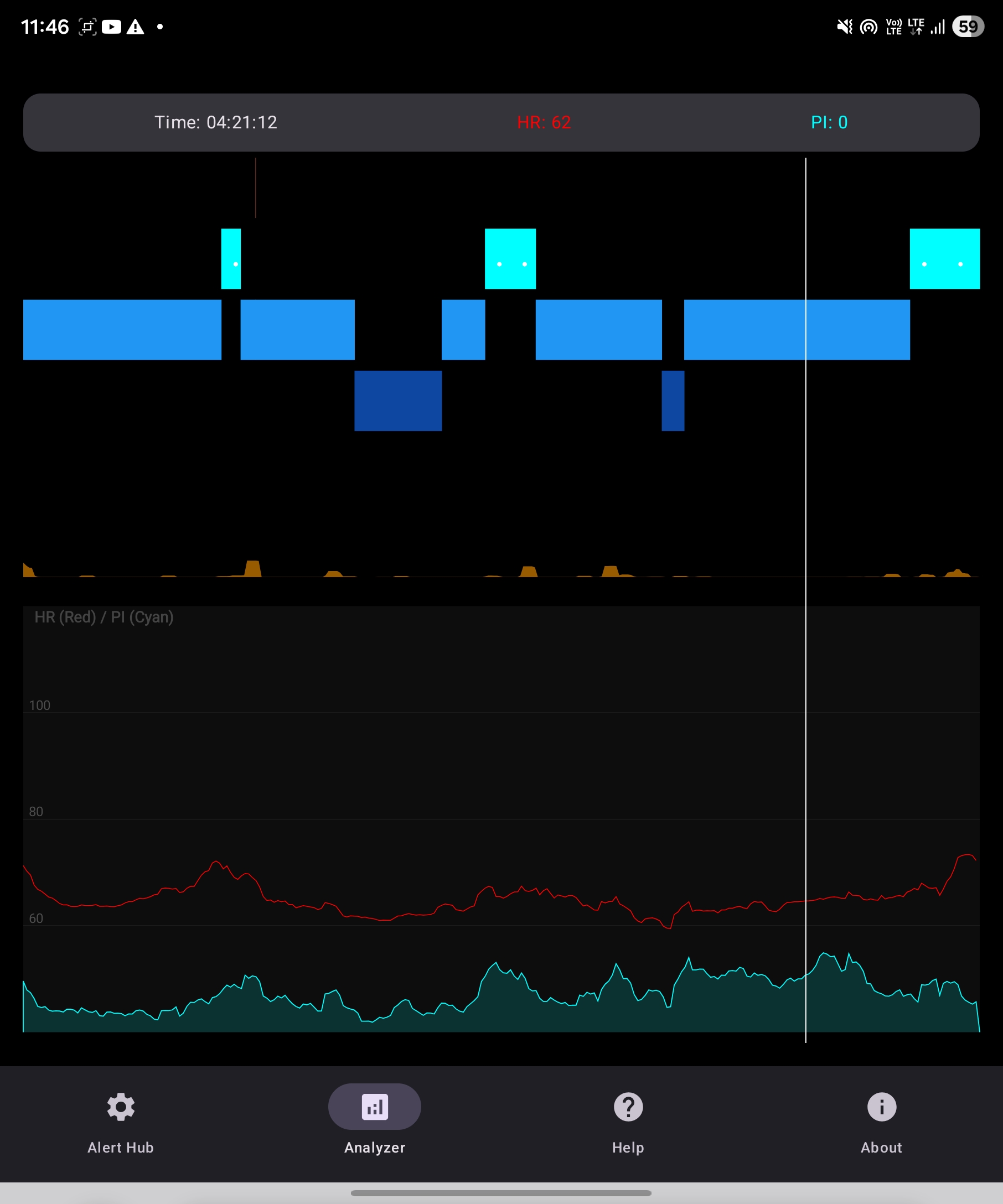
Playback results
-
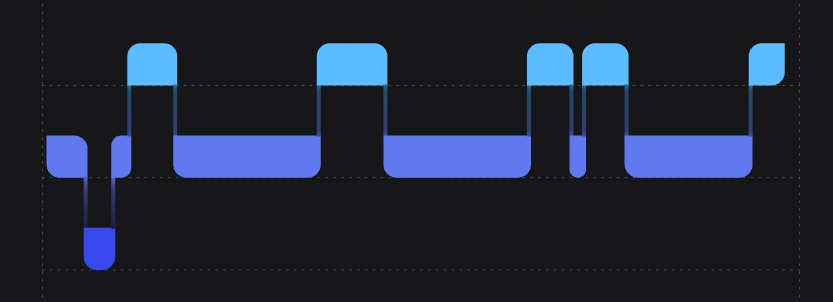
You can compare the playback results with the post-event analysis results from the watch app. If the match is not good enough, you can adjust the parameters appropriately and try again. Once the parameters are stable, you can directly input them into the watch.